> ## Documentation Index
> Fetch the complete documentation index at: https://support.trybarcodes.com/llms.txt
> Use this file to discover all available pages before exploring further.
# How do I use my loyalty cards and reward cards on my Apple Watch?
> Learn how to sync your loyalty cards and reward cards to your Apple Watch
All your reward cards and loyalty cards are stored in iCloud and should sync to your Apple Watch automatically once the app is installed.
You can’t create cards on your Apple Watch, but you can use them from there!
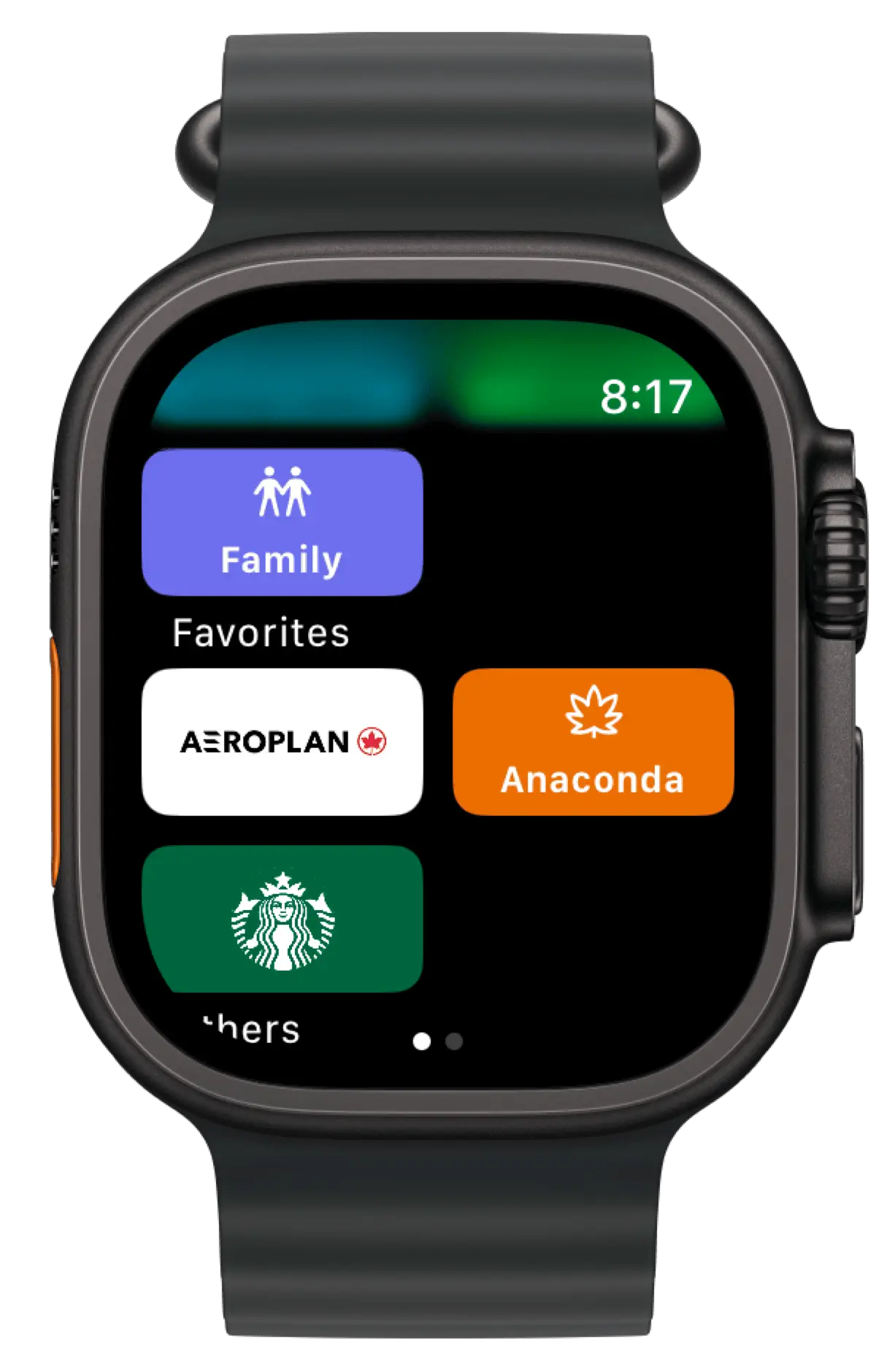
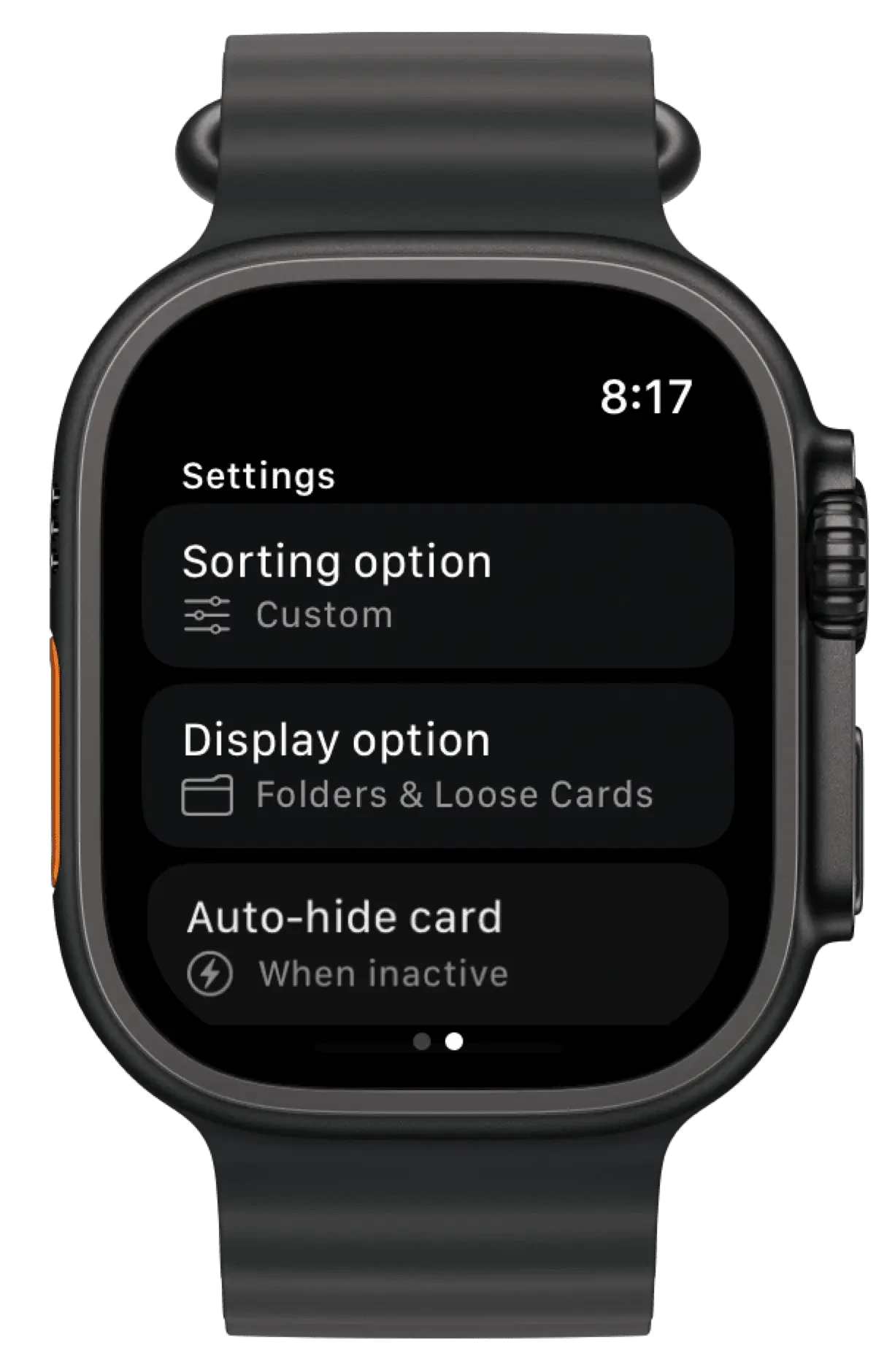
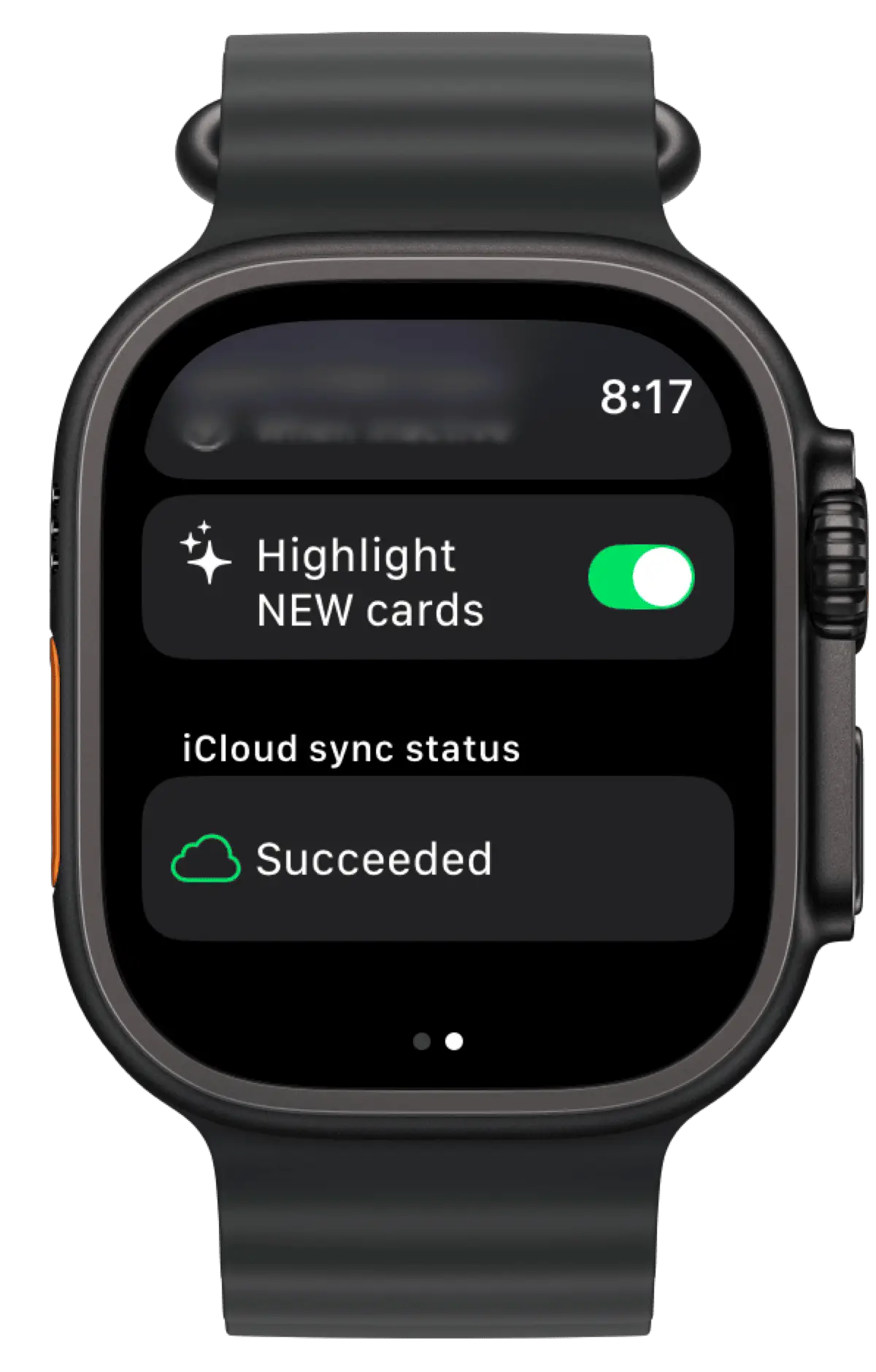
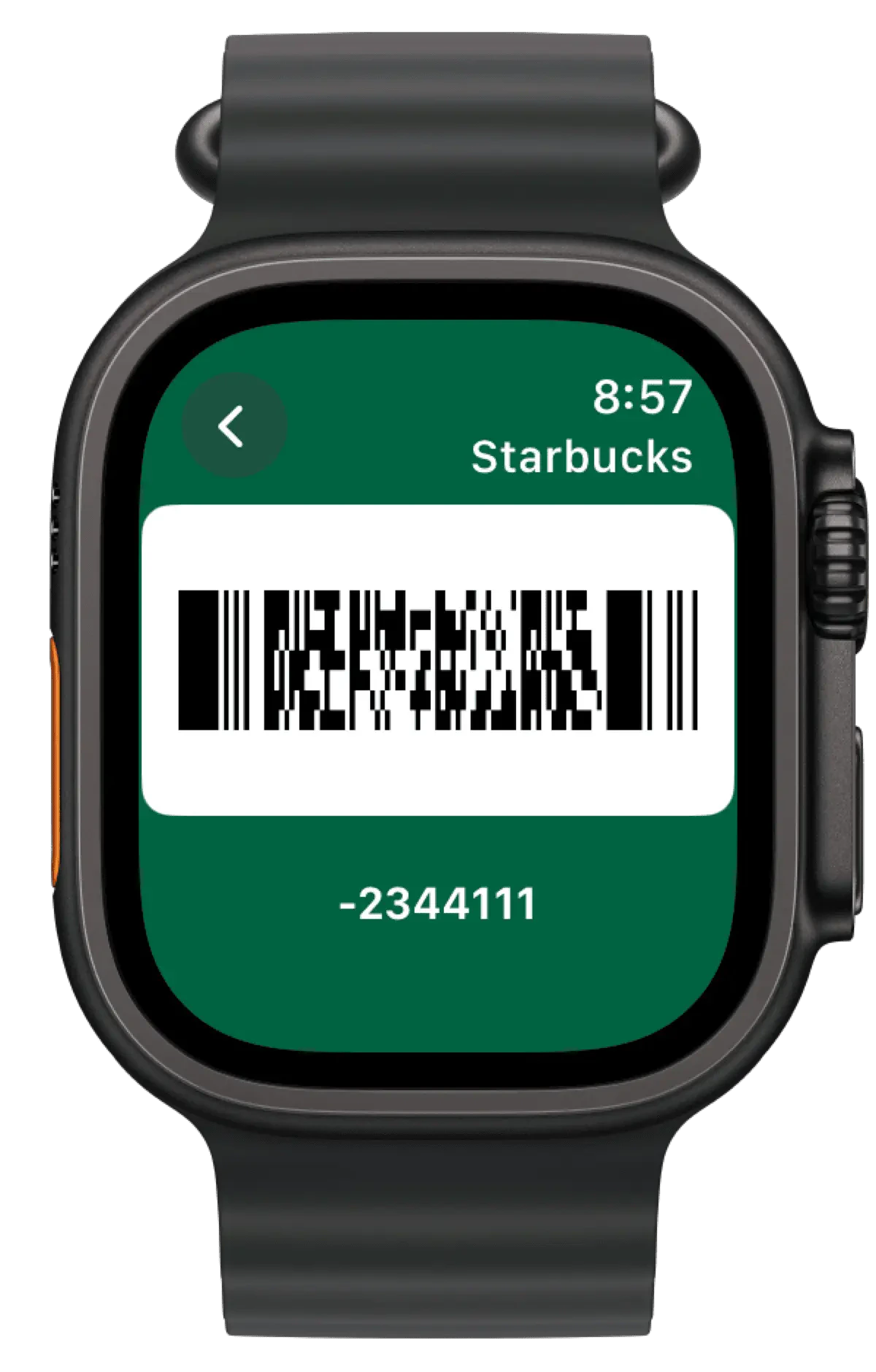 Swipe to the right to see Settings for sorting, display, auto-hiding.
 ### How to install the app to your Apple Watch from your iPhone
1. On your iPhone, open the Watch app.
2. Tap the My Watch tab.
3. Scroll to the app that you want to add. Apps that you can install appear in the Available Apps section.
### How to install the app to your Apple Watch from your iPhone
1. On your iPhone, open the Watch app.
2. Tap the My Watch tab.
3. Scroll to the app that you want to add. Apps that you can install appear in the Available Apps section.
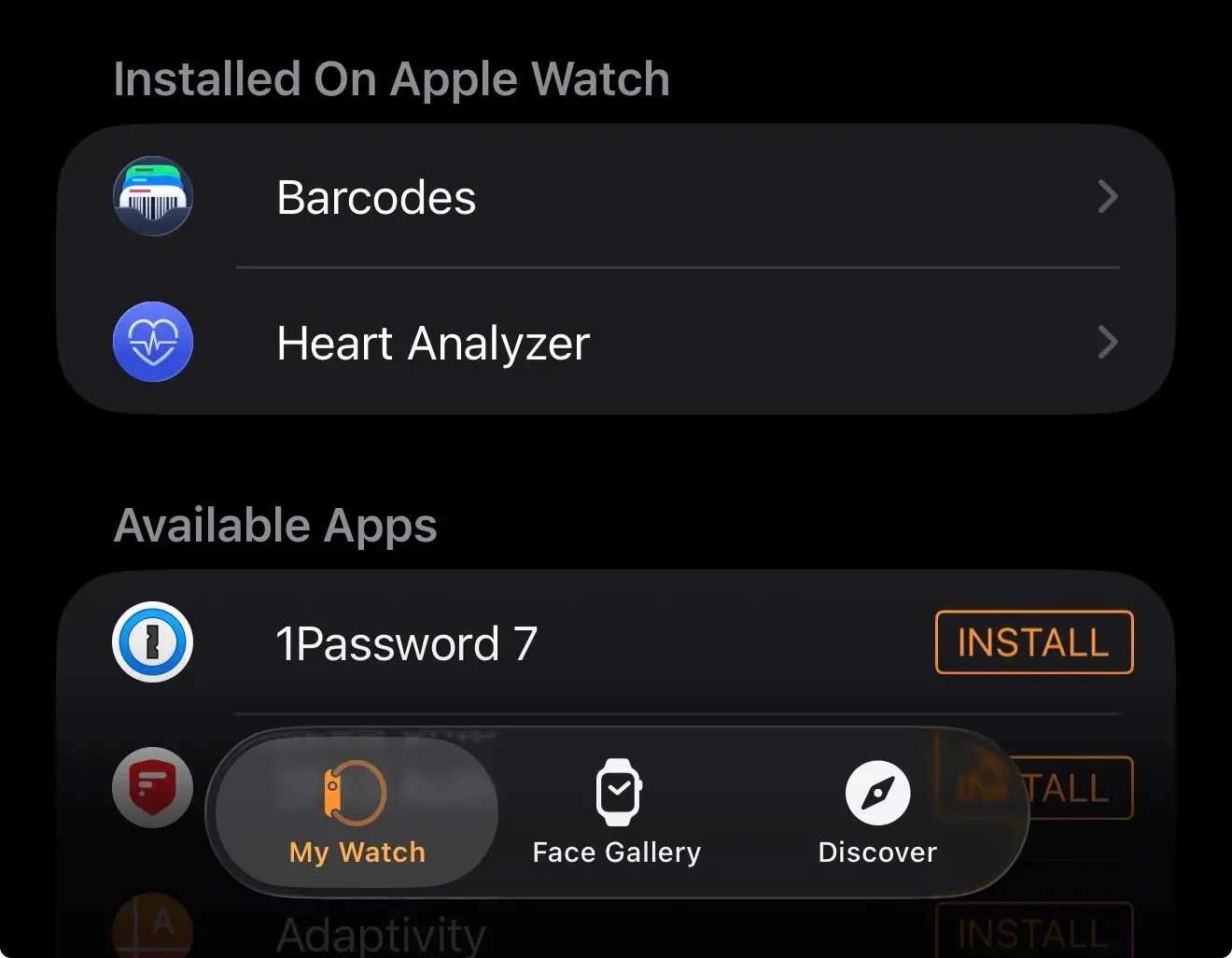 4. To add an app to your watch, tap Install.
If your cards are still not appearing on Apple Watch, see [Why aren’t my cards appearing on my Apple Watch?](/docs/en/troubleshooting/why-aren-t-cards).
4. To add an app to your watch, tap Install.
If your cards are still not appearing on Apple Watch, see [Why aren’t my cards appearing on my Apple Watch?](/docs/en/troubleshooting/why-aren-t-cards).