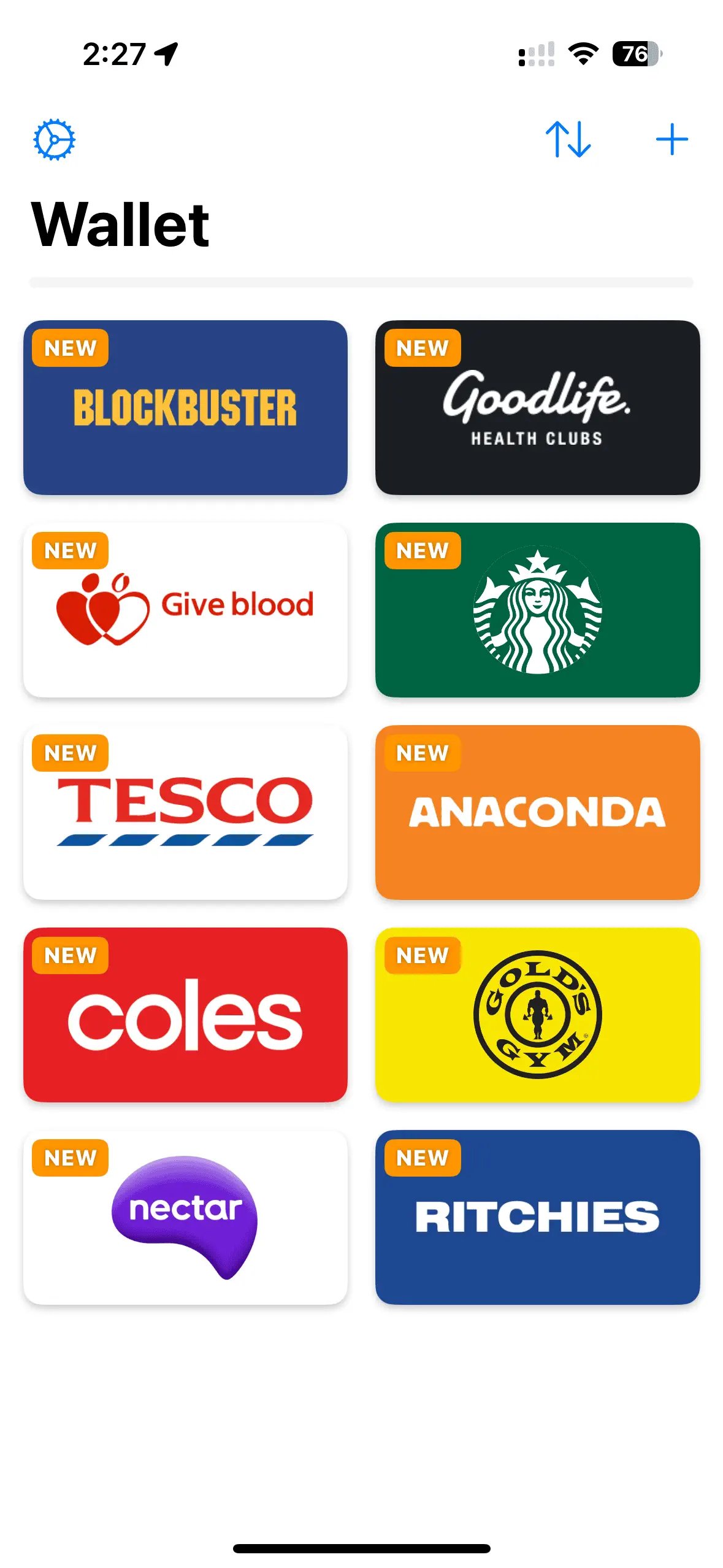
Adding cards
Tap the plus button in the top corner to start adding your cards.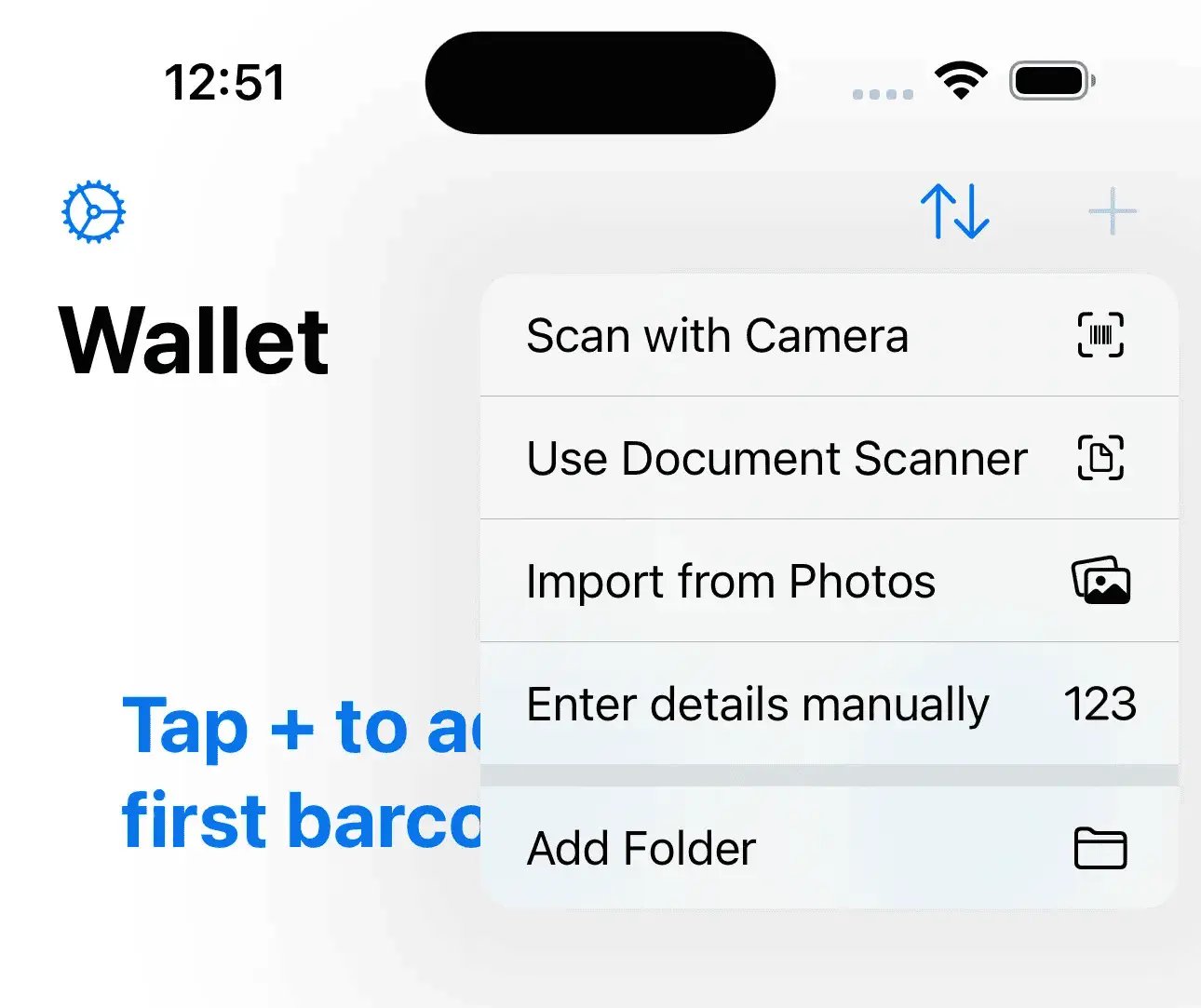
Import from photos
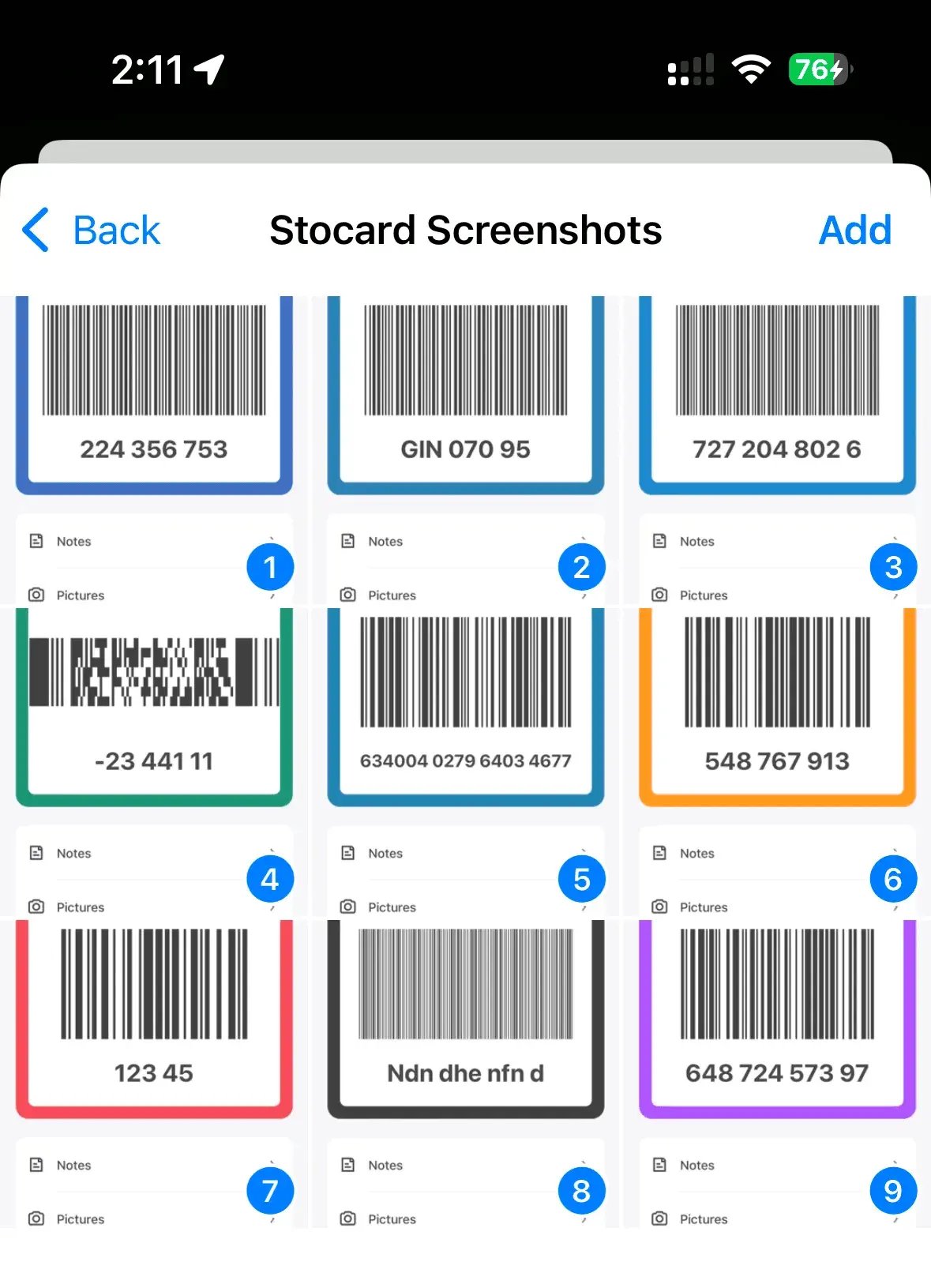
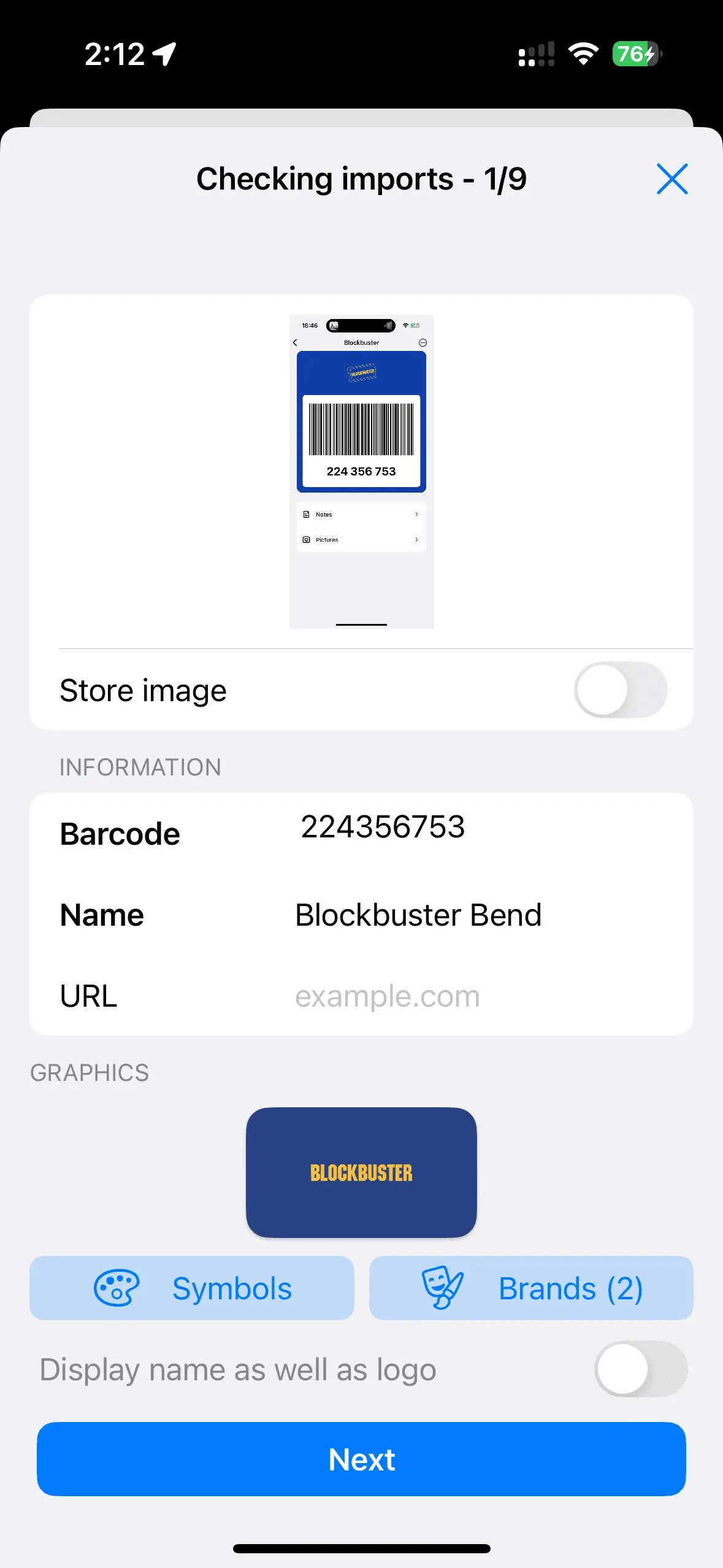
The fastest way to get set up is to import from photos of your cards, or screenshots from another app.- Take screenshots of your cards in an app you want to export from. Make sure you can see the full card details and barcode!
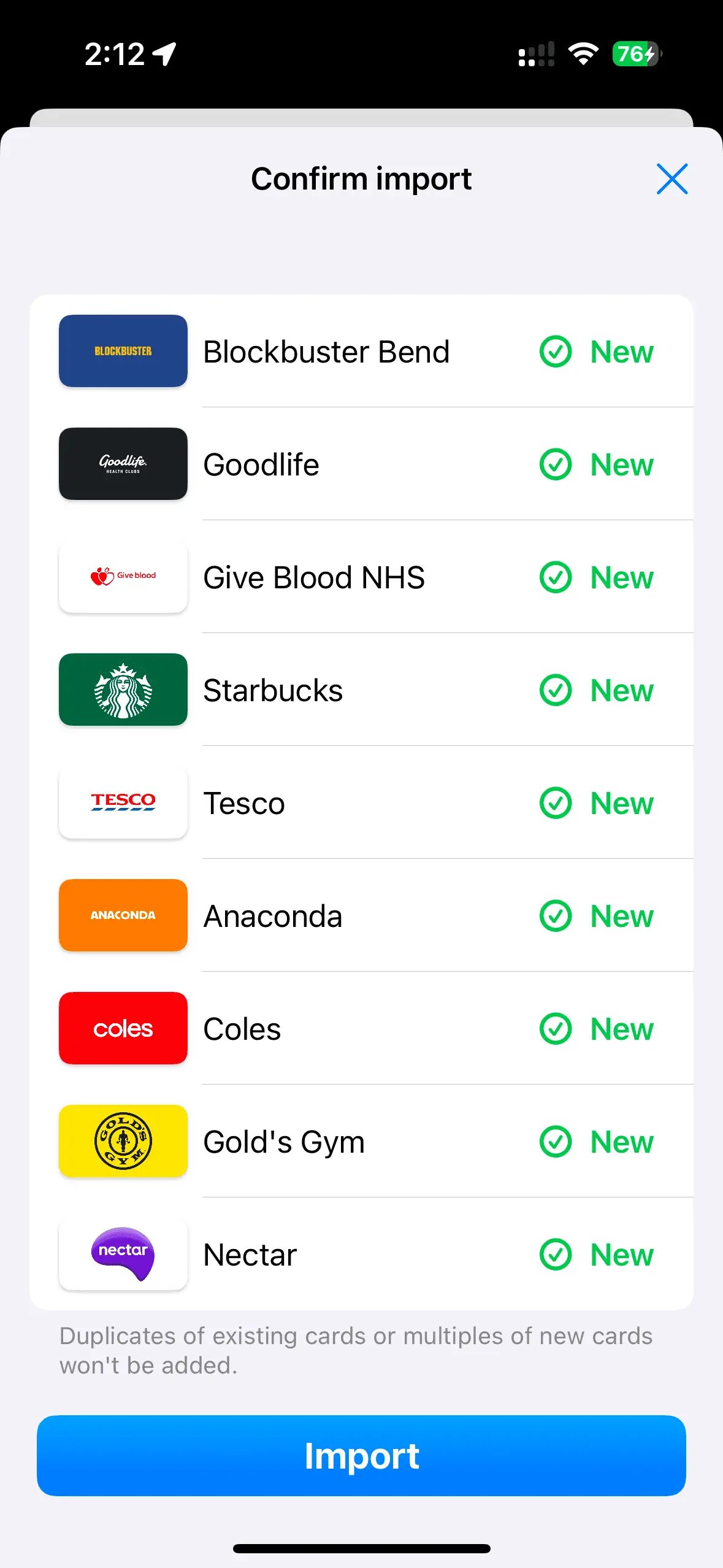
- Tap the plus button, choose Import from Photos and select your screenshots. If you have Barcodes Unlimited, there is no limit on how many cards you can import, but if you’re using the free version you can add up to three cards.
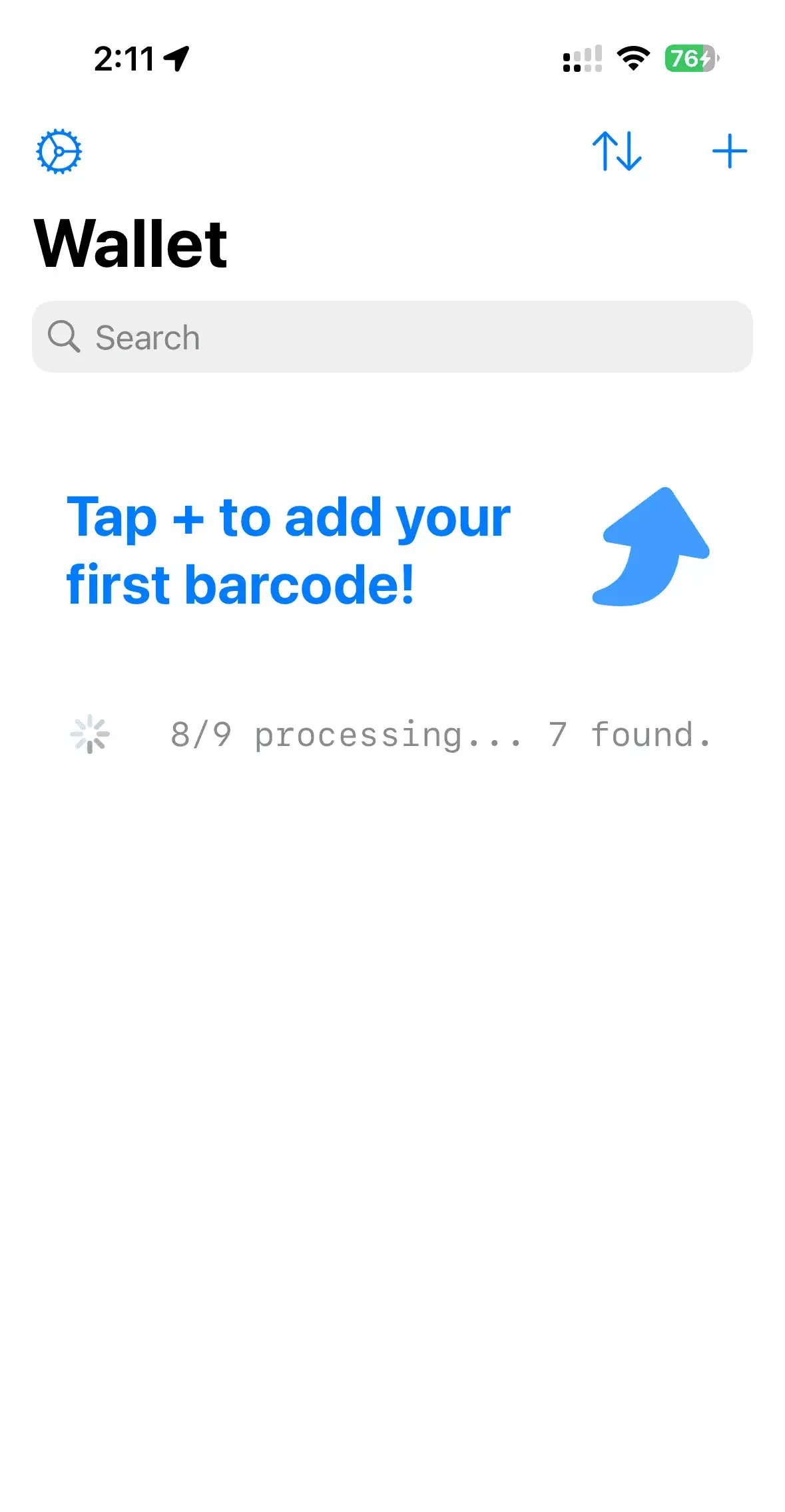
- Barcodes will begin the import process, and you’ll see a progress indicator and then be able to edit your cards before import.
Scan cards with camera
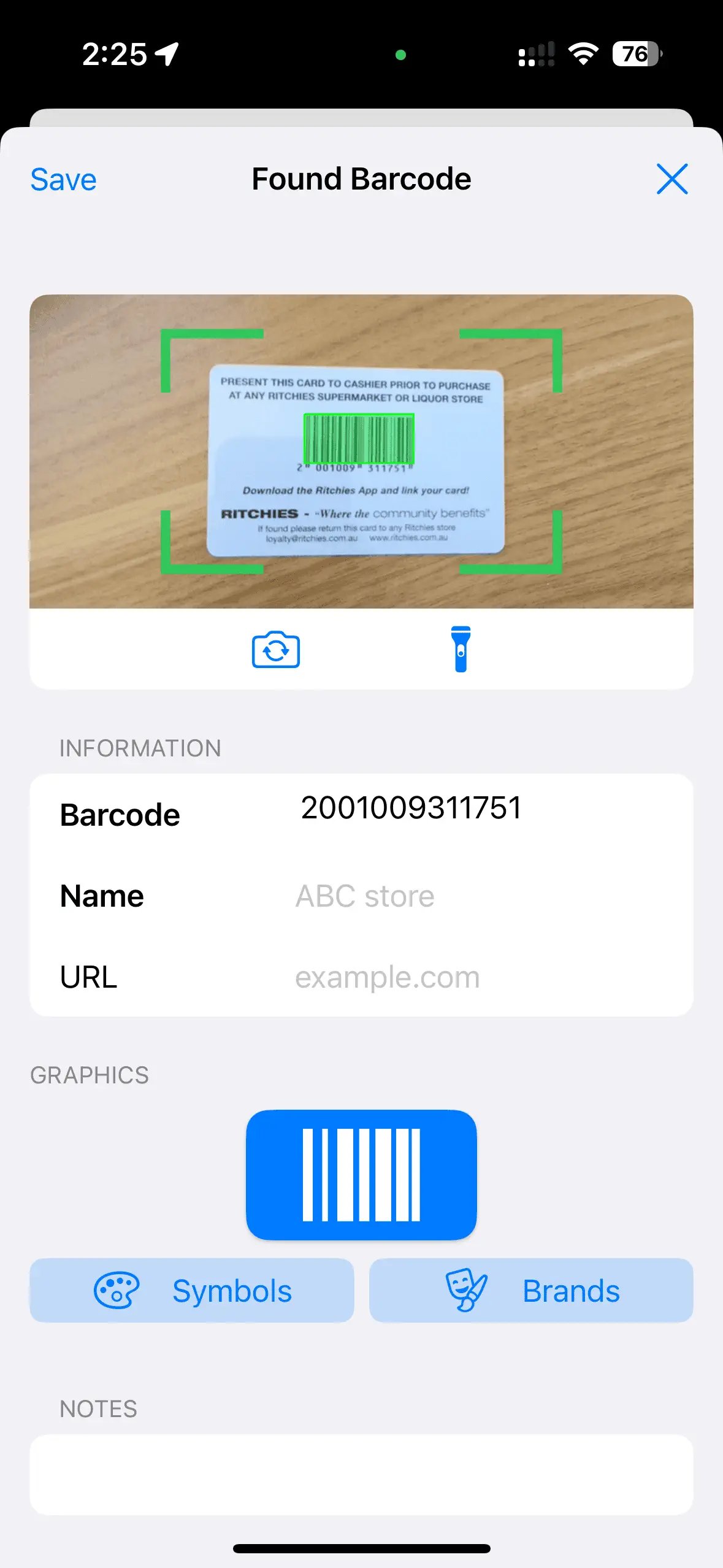
- Tap the plus button and choose Scan with Camera to open the barcode scanner
- Position your card so the barcode or QR code is clearly visible in the viewfinder
- Make sure to align the barcode within the scanning area - the barcode should be parallel to the guide lines
- Hold the phone steady until the scanner recognizes the code
- Once scanned successfully, you can review and edit the card details
- Ensure good lighting conditions
- Keep the camera steady and at the right distance - not too close or too far
- Clean your camera lens for better scanning accuracy
- For damaged or faded barcodes, try using the document scanner instead, or taking a photo and then importing from that.
Scan cards with document scanner
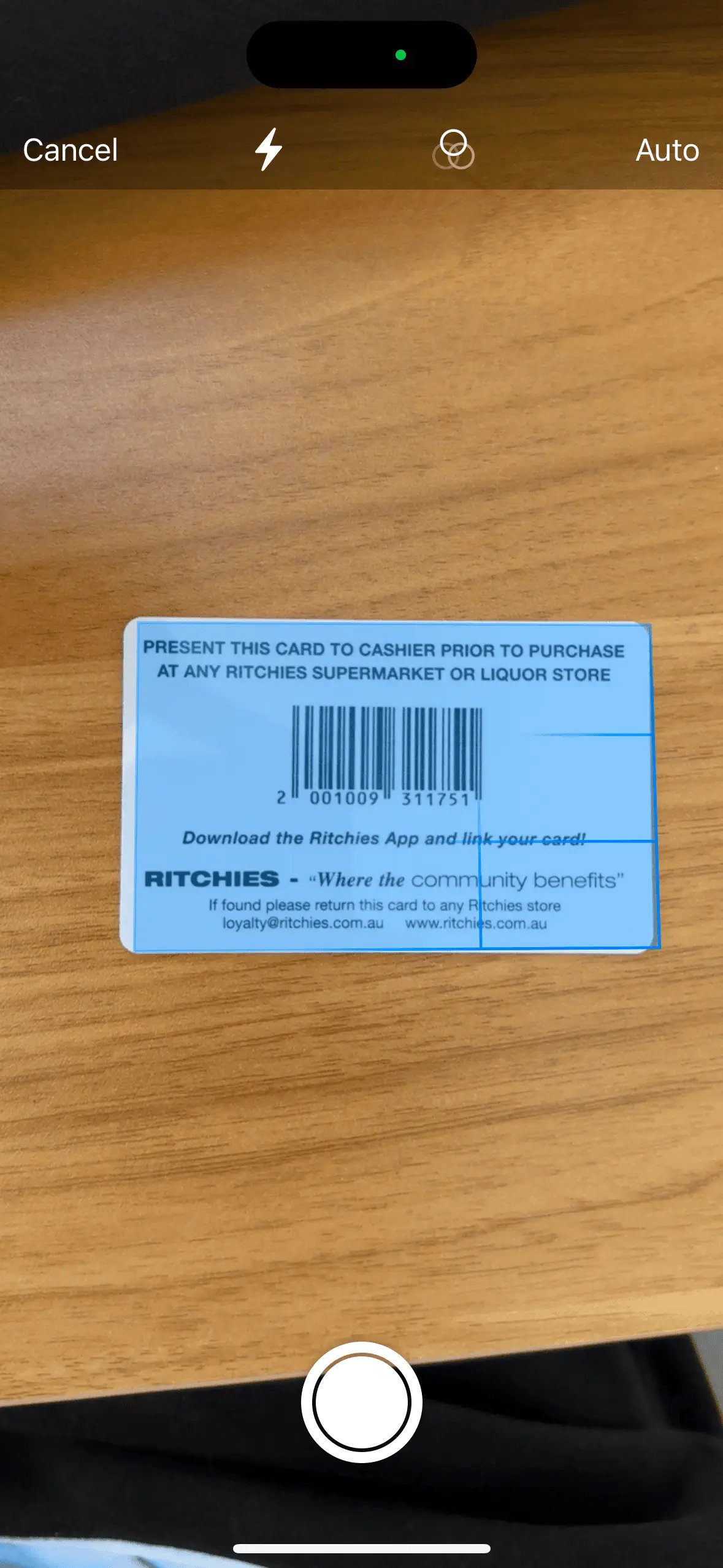
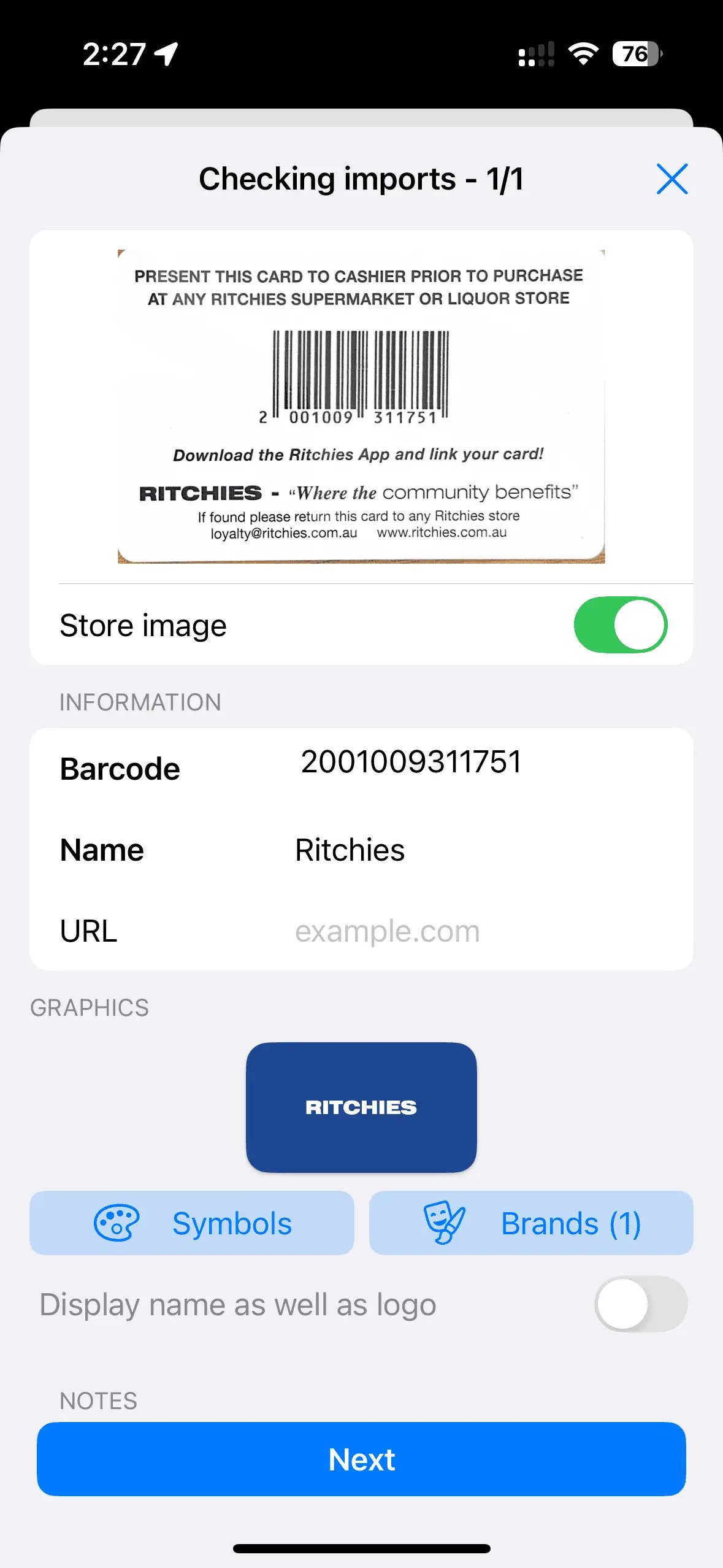
- Open the document scanner by tapping the plus button and choosing Use Document Scanner
- Position your card within the scanner frame. Make sure the barcode is clearly visible.
- The scanner will automatically detect the card edges and capture the image
- Review the scanned image - you can retake if needed
- Your scanned card will be saved and you can then edit the card details
Add card details manually
Finally, you can add card details manually.- Tap the plus button and choose Enter details manually
- Enter your card details like name, card number, and any additional information
- Select the correct barcode format for your card in the Format picker (e.g. EAN-13, Code 128, QR Code)
- Enter the barcode number exactly as it appears on your physical card
- Add any additional details like expiry date or member ID
- EAN-13: Common for retail products and loyalty cards
- Code 128: Used for logistics and many membership cards
- QR Code: Square barcodes that can contain more information
- Code 39: Often used for identification cards
You’re all set!
You’ve added your cards and are ready to live life with a lighter wallet while still collecting all the points and discounts.