> ## Documentation Index
> Fetch the complete documentation index at: https://support.trybarcodes.com/llms.txt
> Use this file to discover all available pages before exploring further.
# Import cards from Supercards
> Learn how to migrate from Supercards
If you’re looking to make a shift to a loyalty card wallet that respects your privacy while having all the bells and whistles, Barcodes can quickly and easily import your cards from Stocard.
## Adding cards
Tap the plus button in the top corner to start adding your cards.
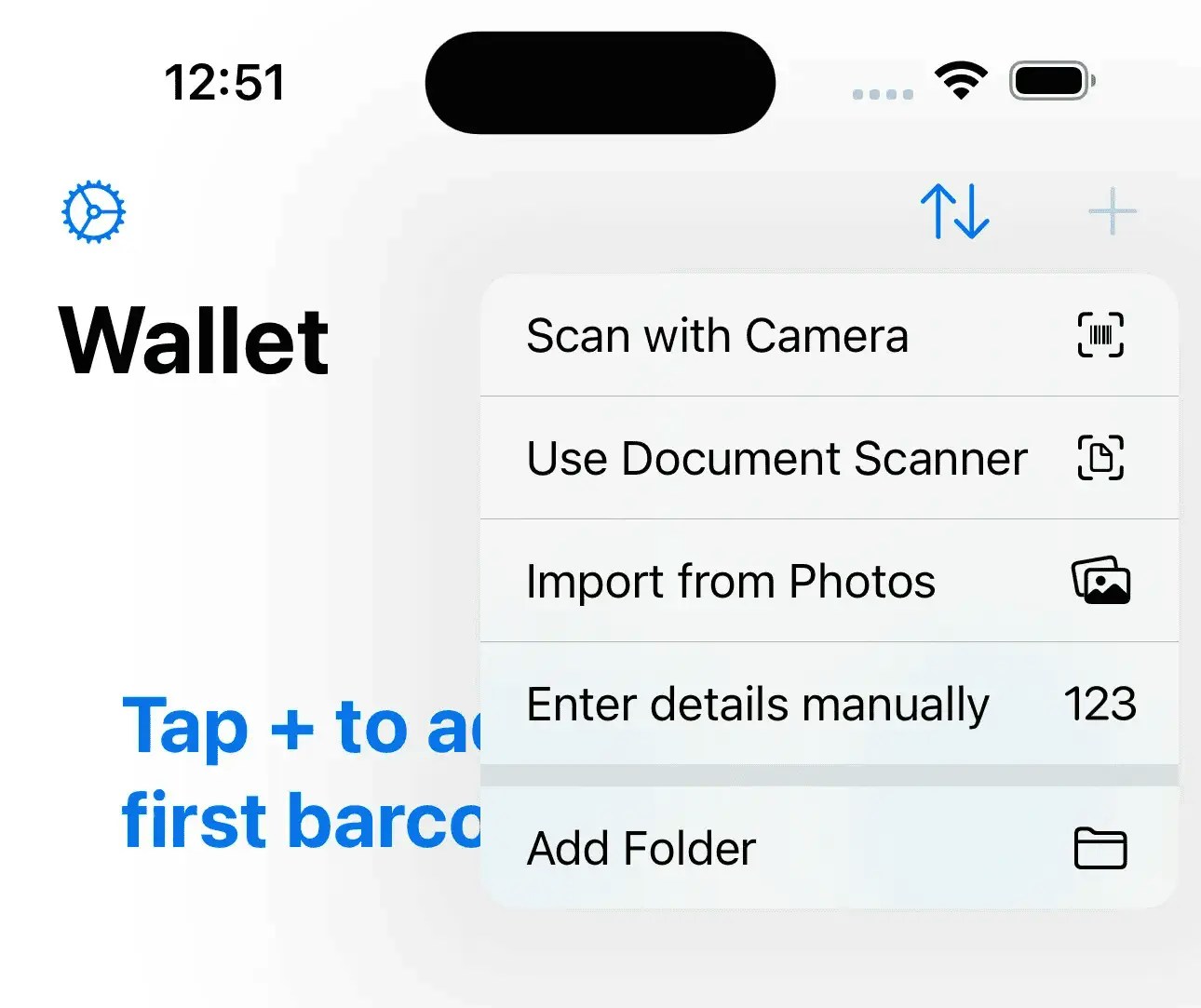 ### Import from screenshots
The fastest way to get set up is to import from screenshots from Supercards.
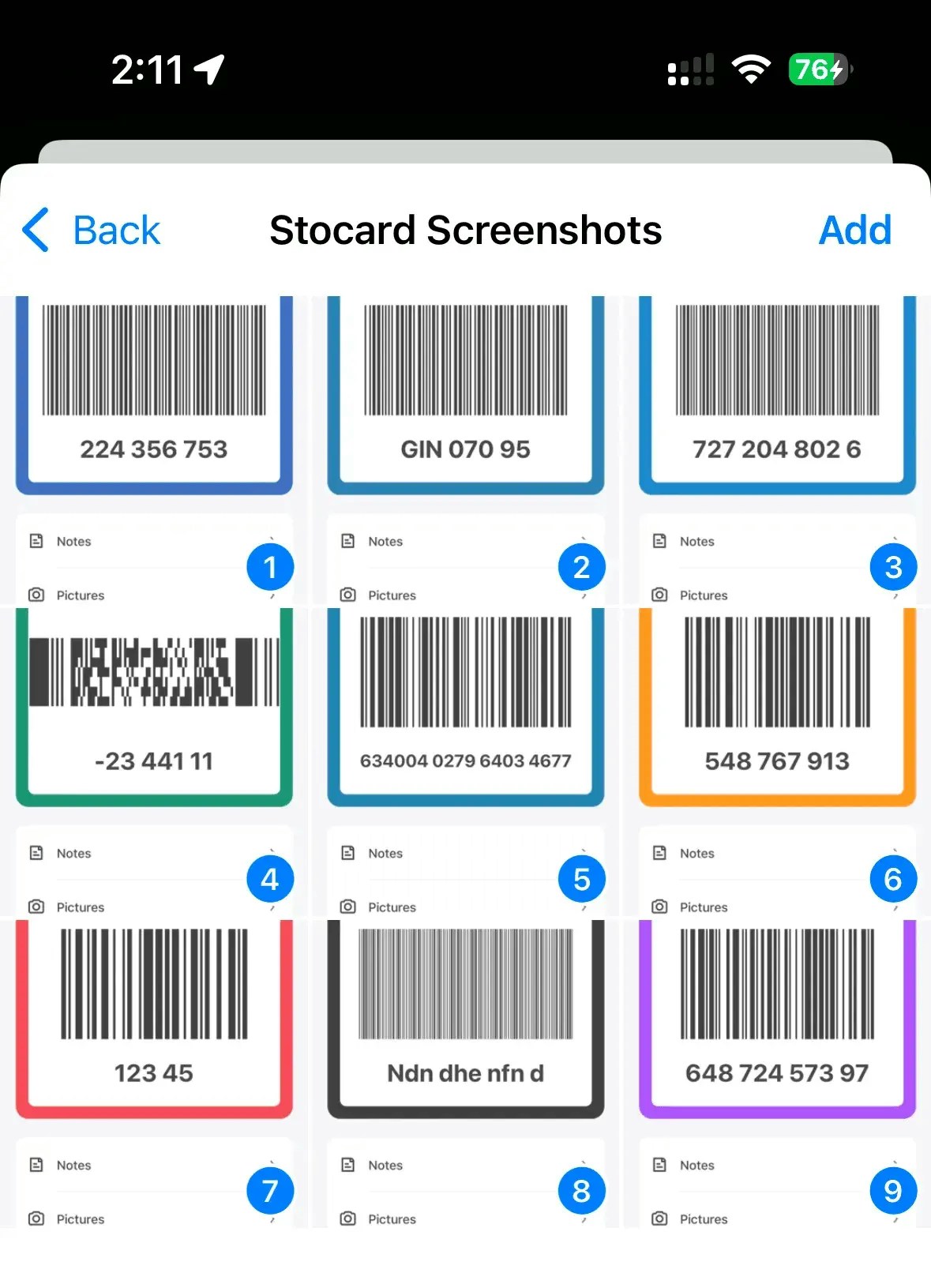
1. Take screenshots of your cards in the app you want to export from. Make sure you can see the full card details and barcode!
2. Tap import from photos and select your screenshots.
If you have Barcodes Unlimited, there is no limit on how many cards you can import, but if you’re using the free version you can add up to three cards.
### Import from screenshots
The fastest way to get set up is to import from screenshots from Supercards.
1. Take screenshots of your cards in the app you want to export from. Make sure you can see the full card details and barcode!
2. Tap import from photos and select your screenshots.
If you have Barcodes Unlimited, there is no limit on how many cards you can import, but if you’re using the free version you can add up to three cards.
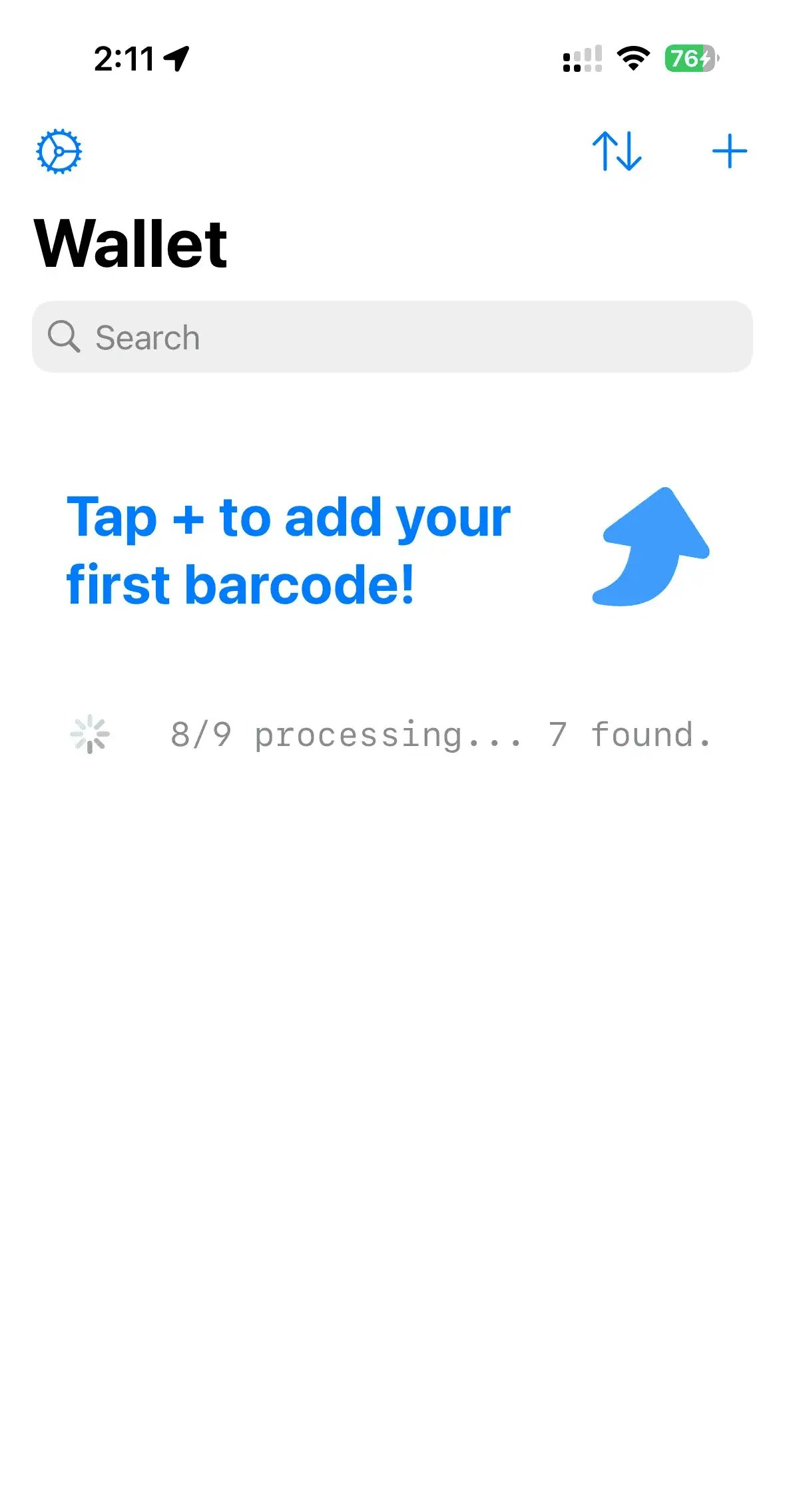
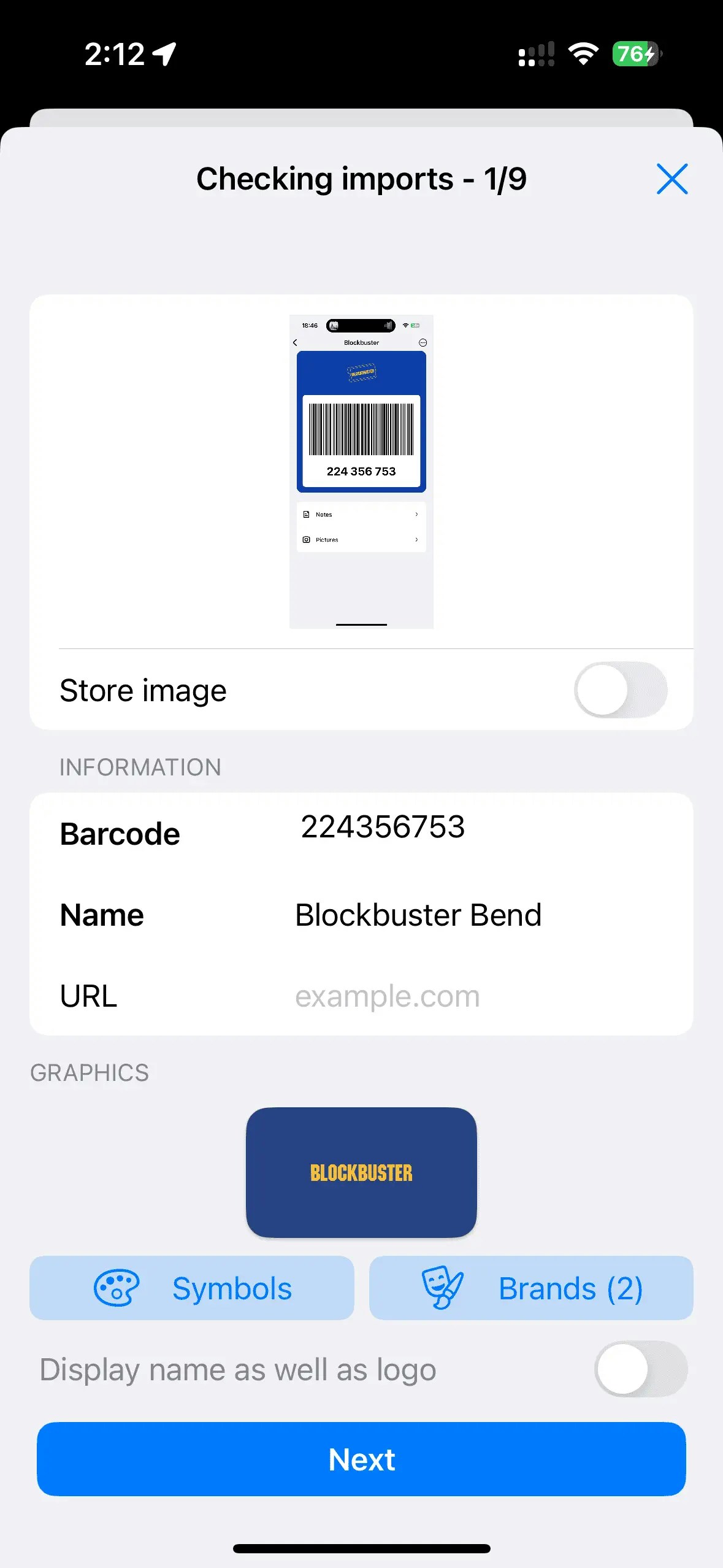
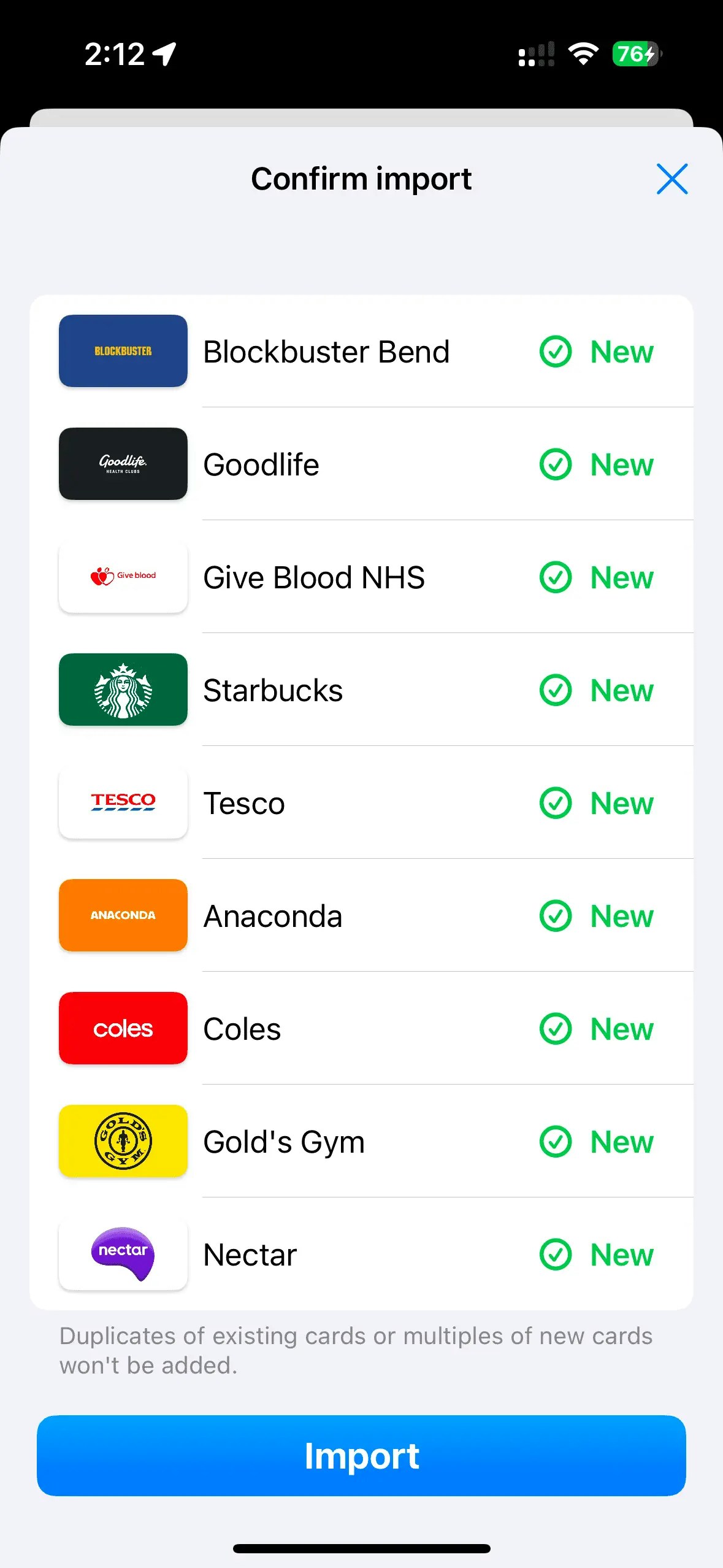
 3. Barcodes will begin the import process, and you’ll see a progress indicator and then be able to edit your cards before import.
 ## You’re all set!
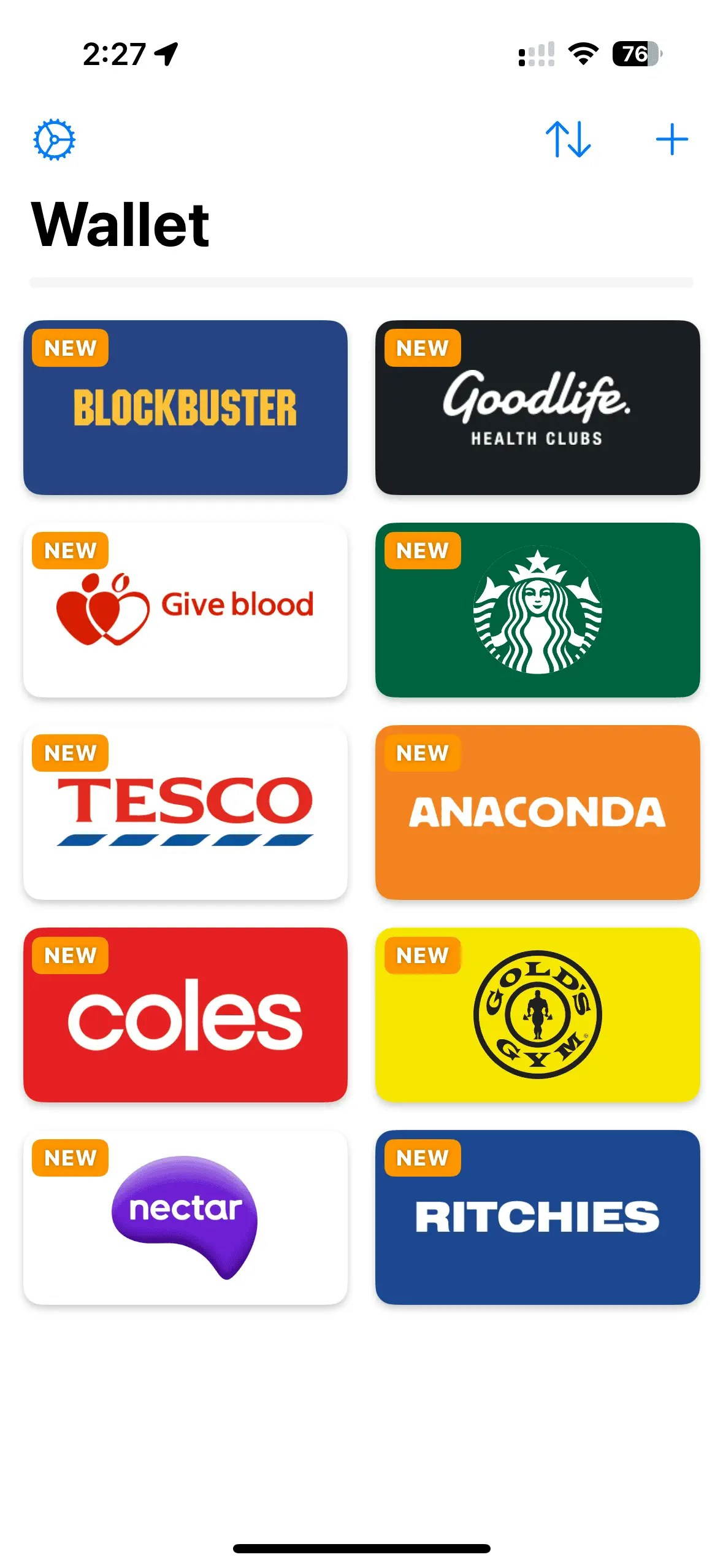
You’ve added your cards and are ready to live life with a lighter wallet while still collecting all the points and discounts.
## You’re all set!
You’ve added your cards and are ready to live life with a lighter wallet while still collecting all the points and discounts.
 Learn more about how to:
* [Add cards to Apple Wallet](/docs/en/apple-wallet/add-cards-apple-wallet)
* Show cards in widget on Home Screen
* Use Barcodes on Apple Watch
* Organise cards into Folders
* Share and Sync Folders over iCloud
Learn more about how to:
* [Add cards to Apple Wallet](/docs/en/apple-wallet/add-cards-apple-wallet)
* Show cards in widget on Home Screen
* Use Barcodes on Apple Watch
* Organise cards into Folders
* Share and Sync Folders over iCloud