> ## Documentation Index
> Fetch the complete documentation index at: https://support.trybarcodes.com/llms.txt
> Use this file to discover all available pages before exploring further.
# How can I sort my cards?
> Learn how to sort your loyalty cards by most used, recently used, alphabetical order, and more
Barcodes lets you sort your cards in a few different ways so you can find what you need quickly.
## Sorting your cards
From the main card grid screen, tap the sorting icon (side-by-side arrows pointing up and down) in the top right corner.
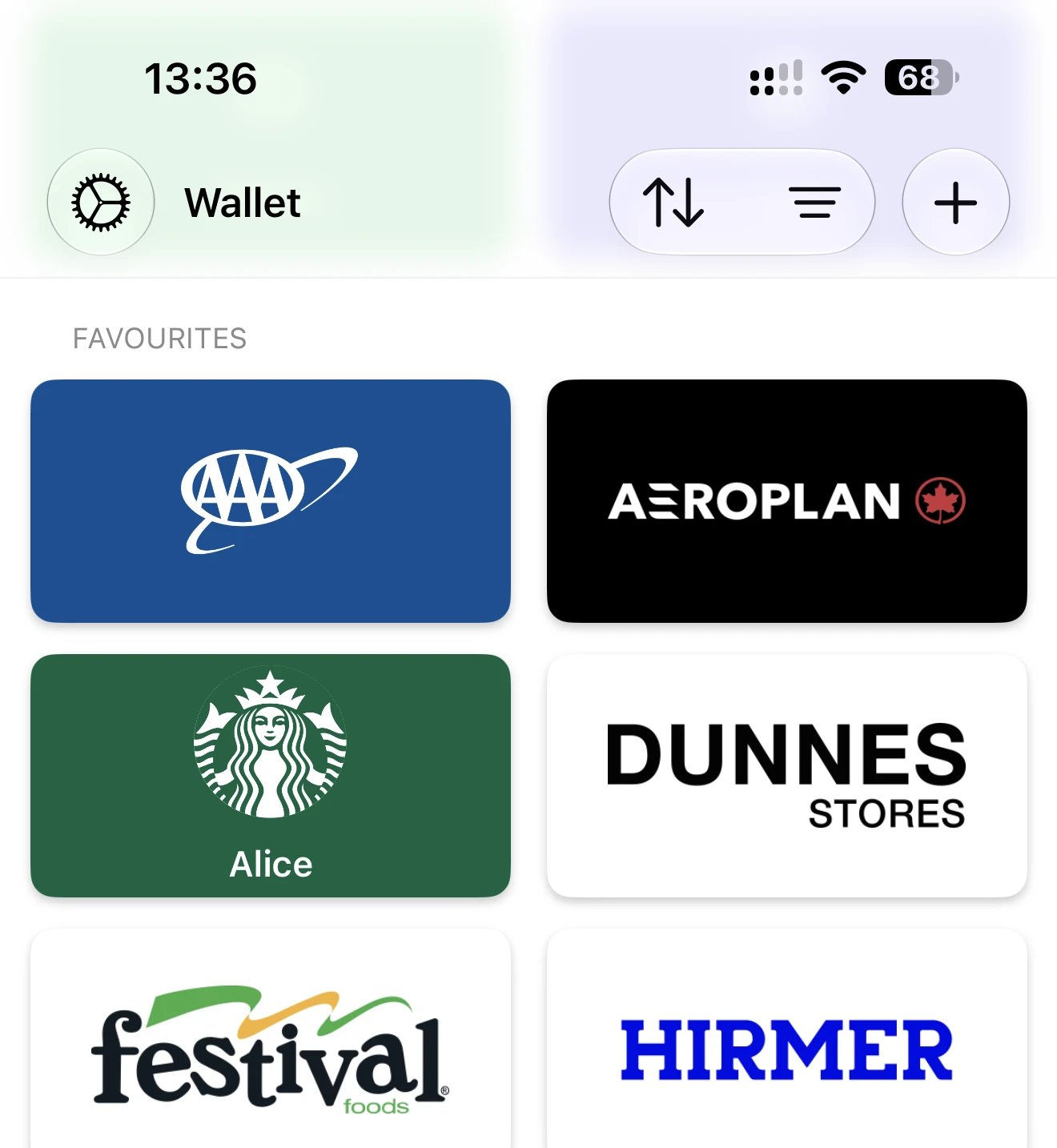
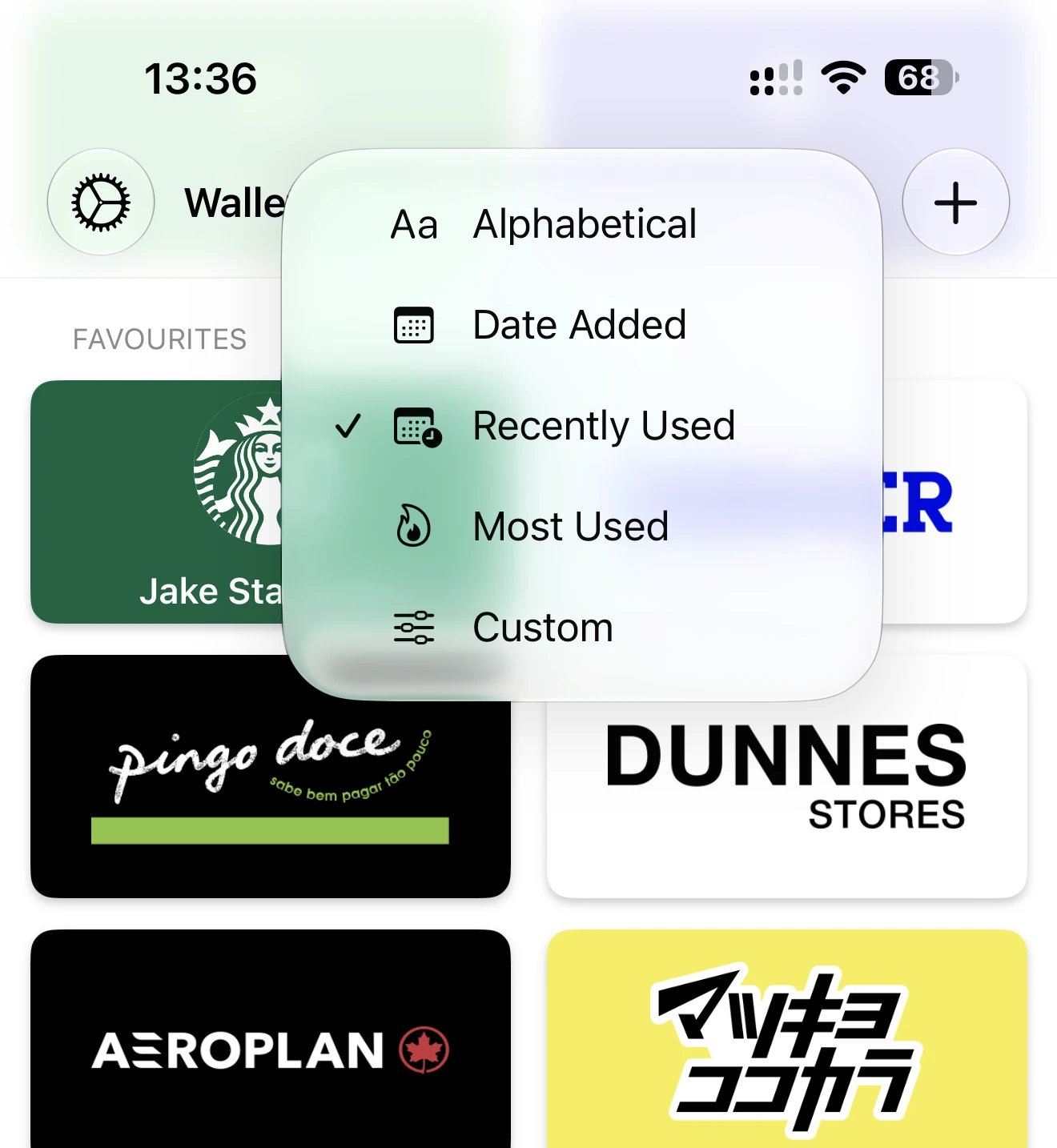 This opens a menu with the following sort options:
* **Alphabetical** — cards ordered A to Z by name
* **Date Added** — your newest cards at the top, oldest at the bottom
* **Recently Used** — cards you used most recently appear first
* **Most Used** — your most frequently used cards rise to the top over time
* **Custom** — drag and drop to arrange cards in your own order
## Most Used and Recently Used
The "Most Used" and "Recently Used" options track your card usage automatically. The more often you open a card, the higher it'll rank in "Most Used" order. "Recently Used" simply shows you the card you last opened, regardless of how often you use it.
These are useful if you want your most important cards at the top without manually arranging them — Barcodes learns what you use and surfaces it for you.
## Custom order
If you prefer to arrange cards exactly how you like, select "Custom" and drag cards into your preferred order. You can also reorder folders in the same way.
This opens a menu with the following sort options:
* **Alphabetical** — cards ordered A to Z by name
* **Date Added** — your newest cards at the top, oldest at the bottom
* **Recently Used** — cards you used most recently appear first
* **Most Used** — your most frequently used cards rise to the top over time
* **Custom** — drag and drop to arrange cards in your own order
## Most Used and Recently Used
The "Most Used" and "Recently Used" options track your card usage automatically. The more often you open a card, the higher it'll rank in "Most Used" order. "Recently Used" simply shows you the card you last opened, regardless of how often you use it.
These are useful if you want your most important cards at the top without manually arranging them — Barcodes learns what you use and surfaces it for you.
## Custom order
If you prefer to arrange cards exactly how you like, select "Custom" and drag cards into your preferred order. You can also reorder folders in the same way.
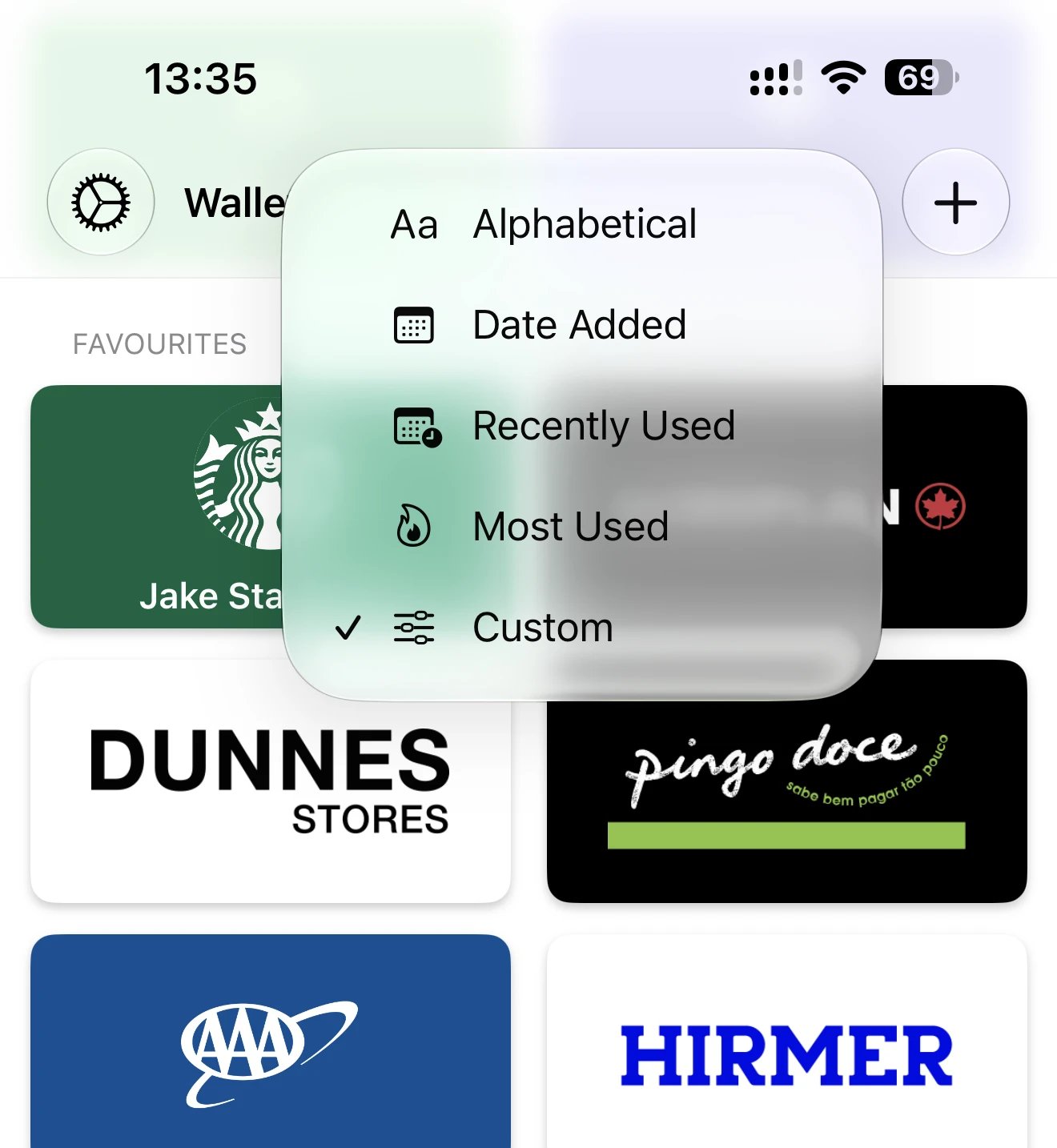
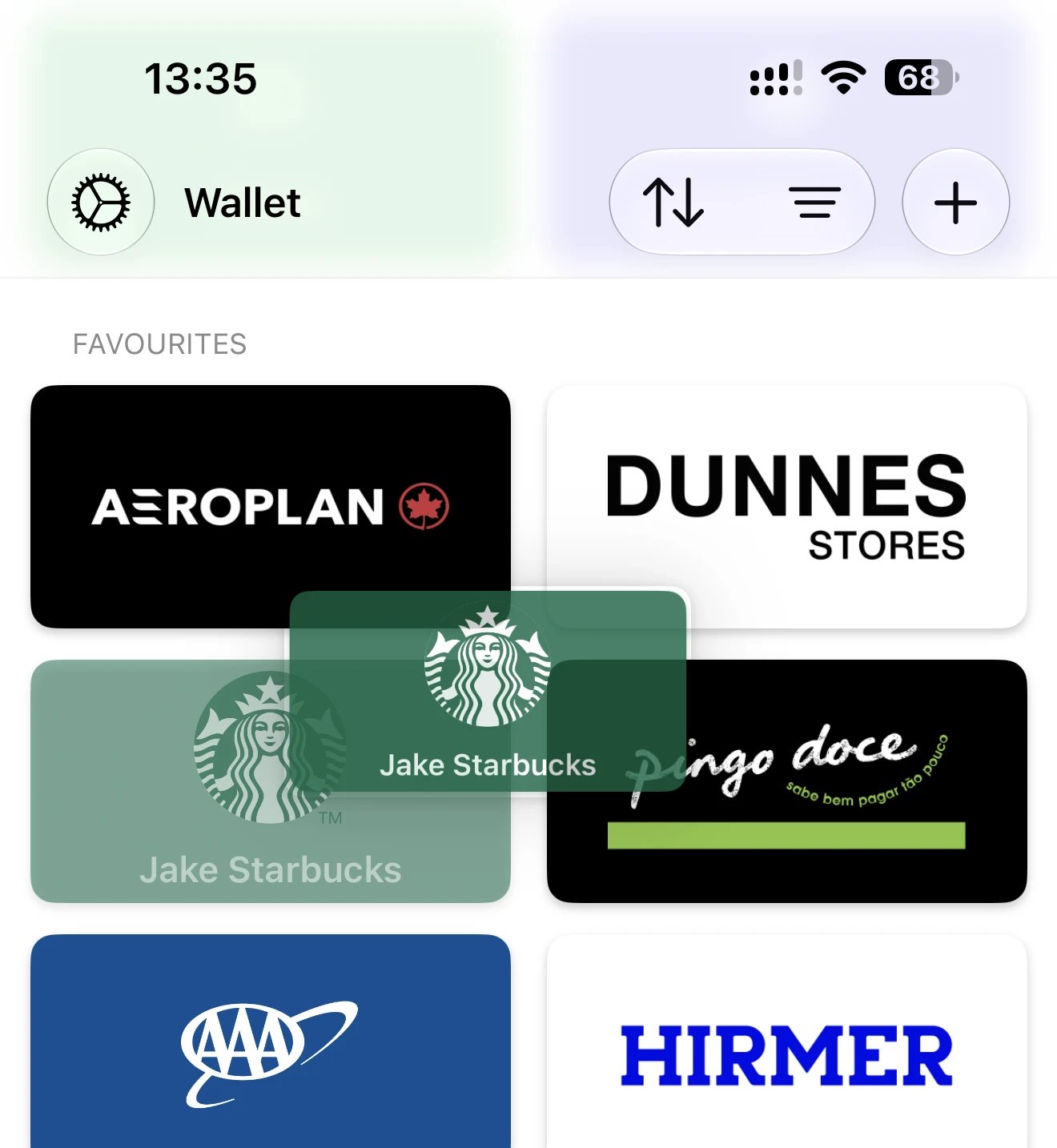 Custom order is maintained separately from the other sort options — switching back to "Most Used" or "Recently Used" will ignore your manual arrangement.
## Sorting on Apple Watch
Sorting options are also available on Apple Watch. Swipe to the right from the card list to open Settings, then tap Sorting. The same options are available there as on iPhone.
See [How do I use my loyalty cards and reward cards on my Apple Watch?](/docs/en/apple-watch/loyalty-cards-apple-watch) for more details.
Custom order is maintained separately from the other sort options — switching back to "Most Used" or "Recently Used" will ignore your manual arrangement.
## Sorting on Apple Watch
Sorting options are also available on Apple Watch. Swipe to the right from the card list to open Settings, then tap Sorting. The same options are available there as on iPhone.
See [How do I use my loyalty cards and reward cards on my Apple Watch?](/docs/en/apple-watch/loyalty-cards-apple-watch) for more details.