> ## Documentation Index
> Fetch the complete documentation index at: https://support.trybarcodes.com/llms.txt
> Use this file to discover all available pages before exploring further.
# How do I export and import my data?
> Learn how to import and export your data.
## Exporting your data
To export your data, go to Settings > Advanced. To export **all** your data so it can be imported, follow these steps.
1. Select “Export full backup”
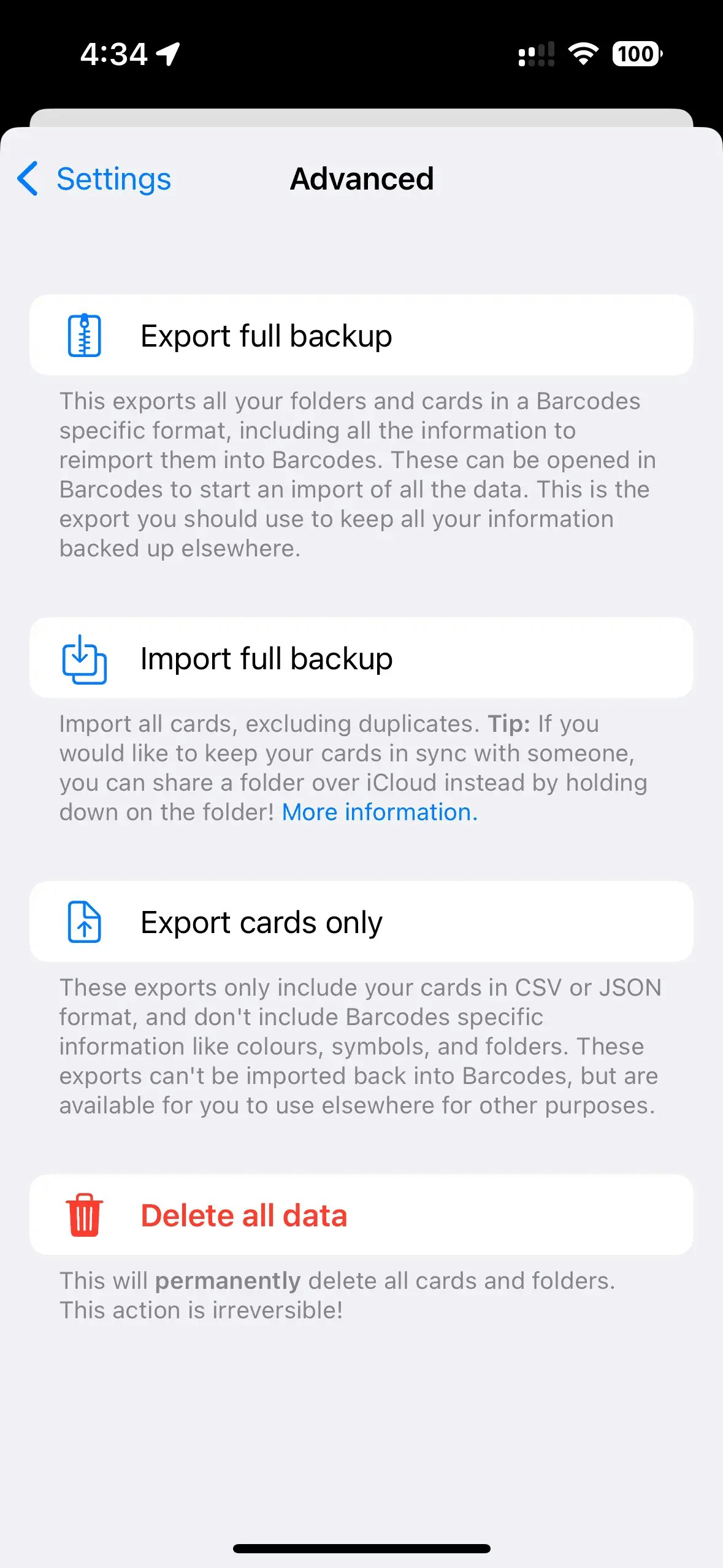 1. Select “Save to files”, or choose where to send or store the backup zip folder
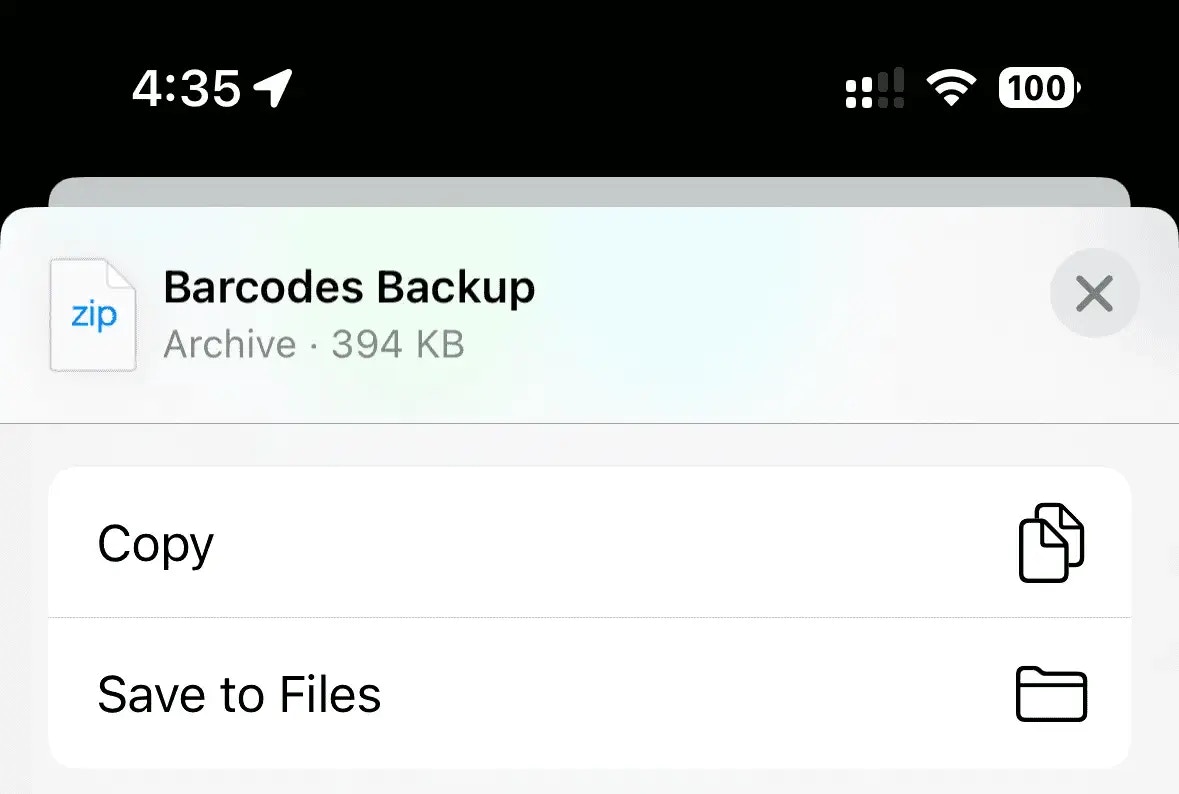 Now you’ve got a full back up you can use to import all your cards to someone else’s device, or to restore from if needed.
## Importing your data
To import your data from a backup, go to Settings > Advanced and follow these steps:
1. Select "Import backup"
2. Choose the backup zip file you want to import from your files
Now you’ve got a full back up you can use to import all your cards to someone else’s device, or to restore from if needed.
## Importing your data
To import your data from a backup, go to Settings > Advanced and follow these steps:
1. Select "Import backup"
2. Choose the backup zip file you want to import from your files
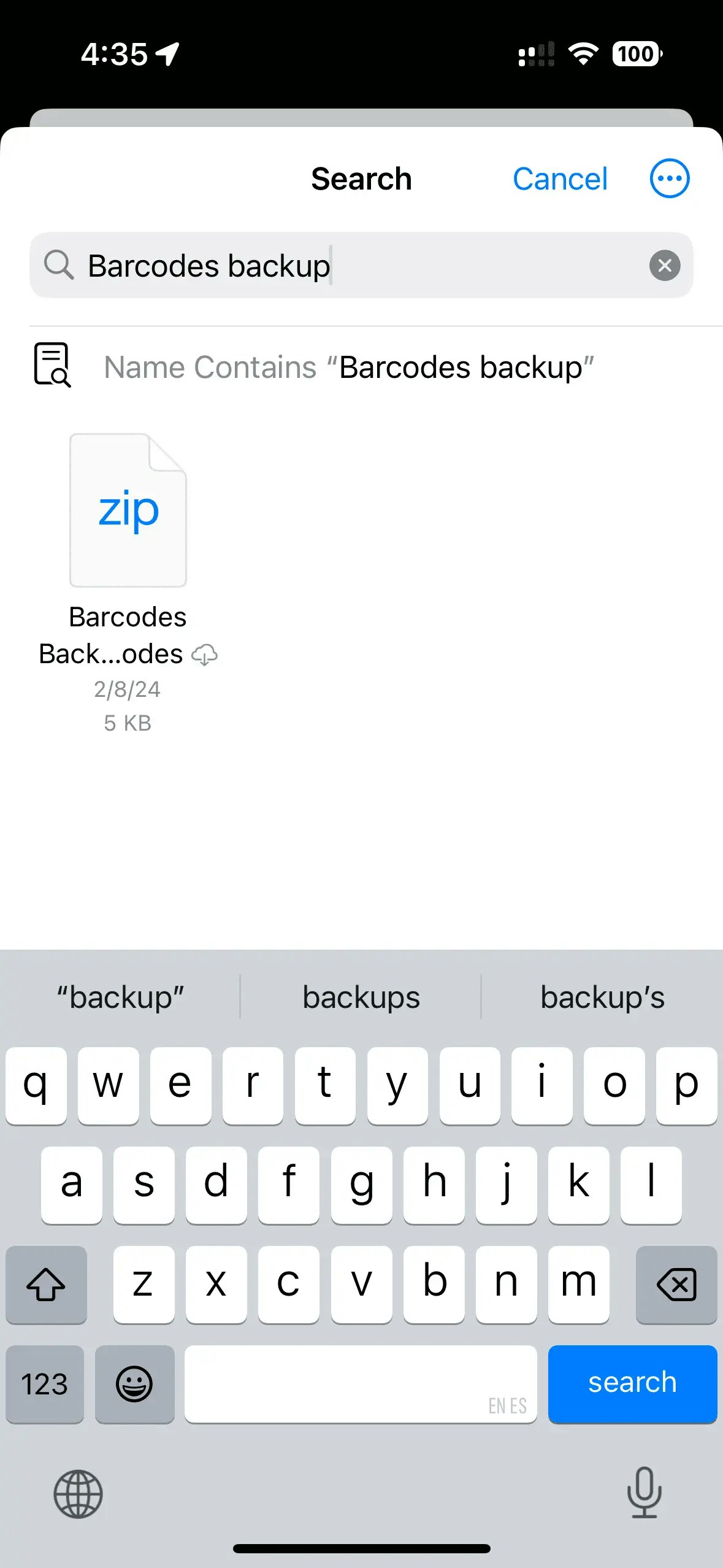 3. Confirm the import when prompted
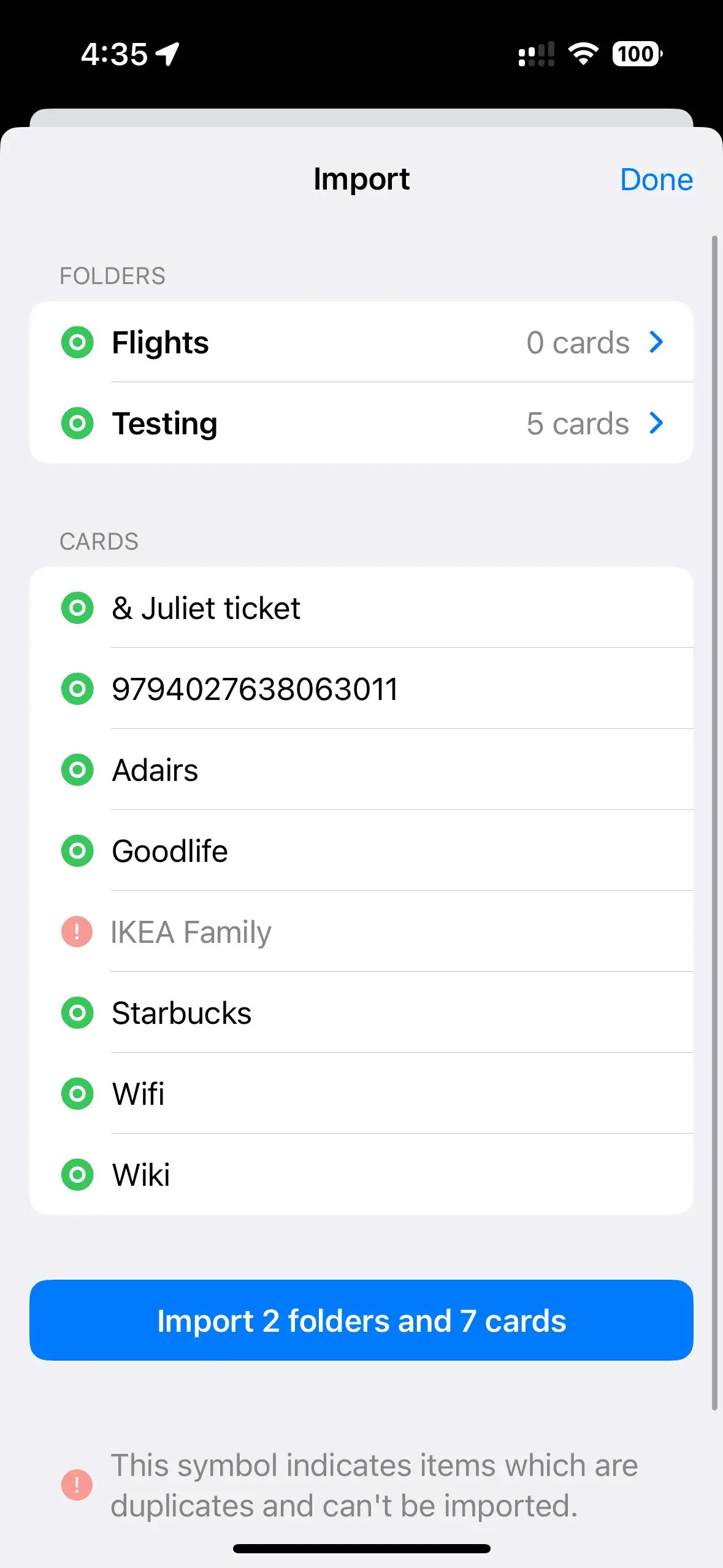 Your data will then be restored from the backup file.
Note: Importing will not delete or overwrite your existing data - it will add the imported data alongside what you already have.
Tip: If you’re looking to keep cards in sync, instead of exporting and importing you can instead share over iCloud!
[Sharing over iCloud](/docs/en/sharing-data/sharing-over-icloud)
Your data will then be restored from the backup file.
Note: Importing will not delete or overwrite your existing data - it will add the imported data alongside what you already have.
Tip: If you’re looking to keep cards in sync, instead of exporting and importing you can instead share over iCloud!
[Sharing over iCloud](/docs/en/sharing-data/sharing-over-icloud)