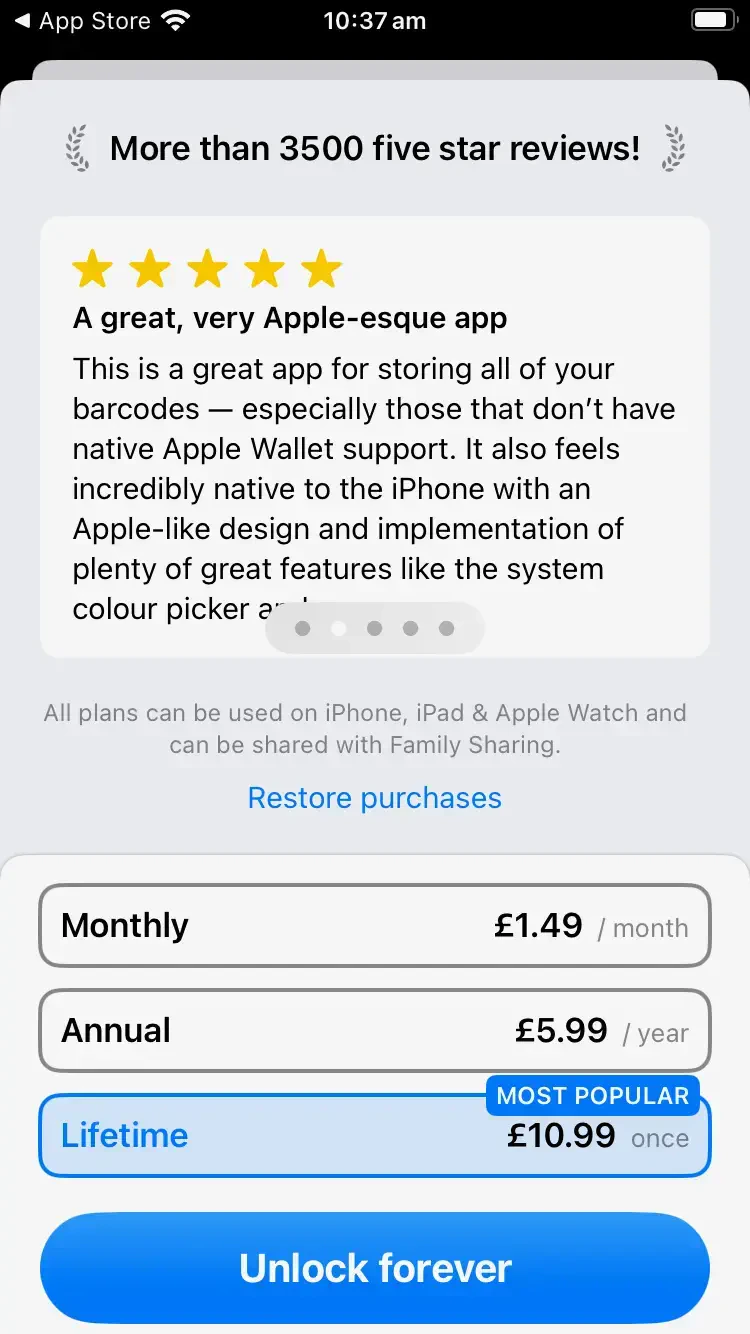
Your Barcodes Unlimited purchase, of a subscription or in-app purchase, can be shared with your family if you have Family Sharing set up. Family Sharing for in-app purchases is automatically enabled when you have Share Purchases selected in your Family Sharing settings, and subscriptions can be chosen to share or not share.
Family Sharing can take up to a day or in rare cases longer for Apple to sync your purchases. If you can’t restore the purchase on a family member’s device, please wait a few hours and try again, and then contact support via email in the app if it’s still not available!

Setting up Family Sharing for in-app purchases

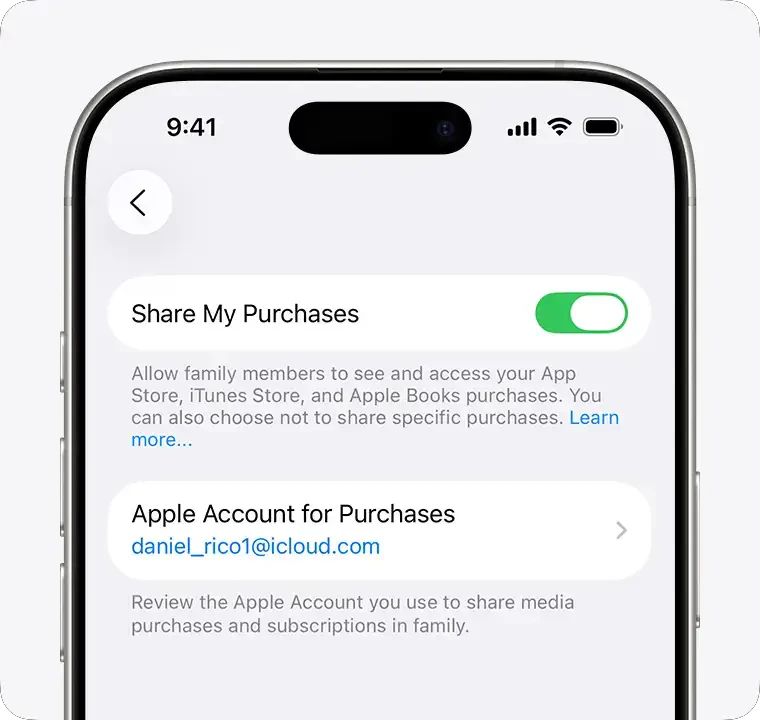
To share your Barcodes Unlimited purchase with family members, ensure Family Sharing is configured correctly on both the purchaser’s and family member’s devices.
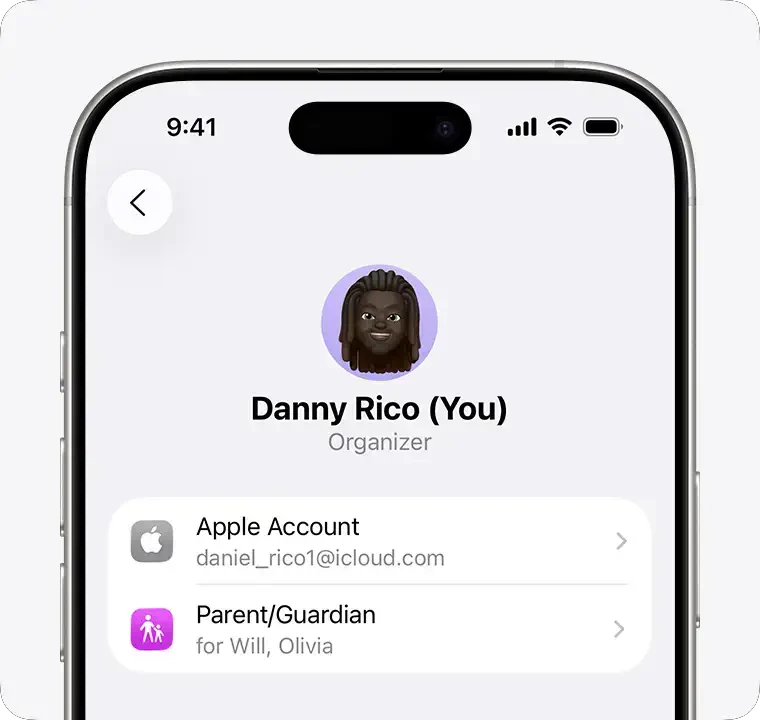
Family member Apple Account settings
Family member purchases settings
Once purchased, your family member just needs to go to the upgrade screen and then tap Restore Purchases! Note you may need to scroll to see the button.
Restore Purchases button visible after scrolling

Sharing your subscription

You can share your Barcodes Unlimited subscription with family members.
  1. Go to Settings > Family > Subscriptions > Manage Subscriptions.
  2. Do either of the following:
    • Share all new subscriptions: Turn on Share with Family. When you purchase a new subscription that’s eligible for sharing, it’s shared with your Family Sharing members by default.
    • Change the settings of a specific subscription: Tap a subscription, then turn Share with Family on or off.
If you can’t find your family’s shared apps and content, Apple’s support article provides detailed troubleshooting steps.
Helpful Links