

What this update is
This is a one-time update that refreshes your existing Apple Wallet passes. Running it once swaps your current passes for updated versions, so they keep working smoothly and stay manageable from the app. You’ll only be asked to confirm once — it only takes a moment — and your cards and saved settings in Barcodes stay exactly as they are.When you’ll see it
From version 2.6.4, Barcodes offers this update the first time you open the app after updating. You’ll only see it if you have Apple Wallet passes that may need refreshing — if you haven’t added any Apple Wallet passes previously, nothing changes and you won’t be prompted.Updating your passes
- When prompted, review the cards listed. Cards already in your Wallet appear under Active and are preselected; cards you’ve used with Wallet before appear under Previous and are left unselected.
- Select or deselect any cards to choose what’s included.
- Tap Update Wallet Passes.
- Apple Wallet will ask you to confirm. This is a single confirmation that covers all of the selected passes at once.
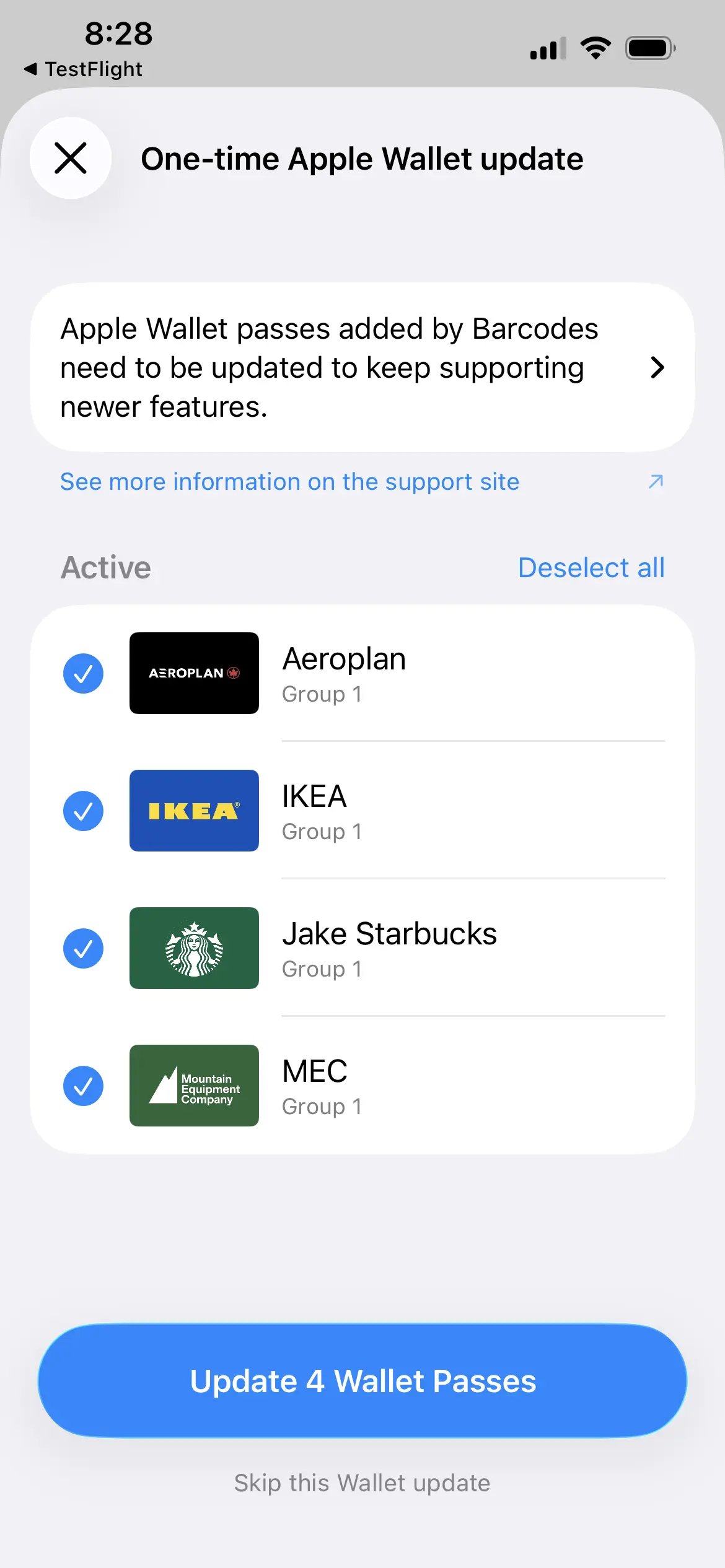
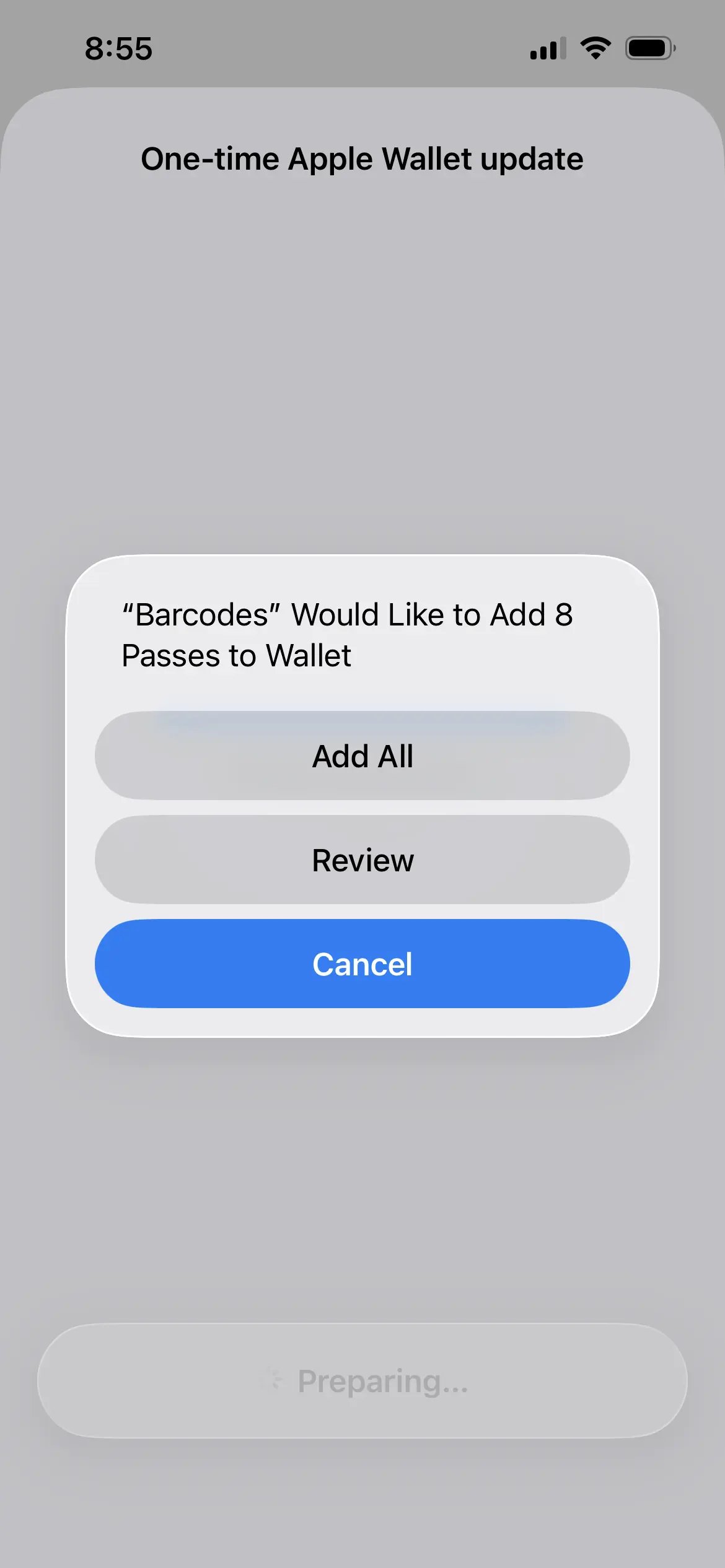
On the Apple Wallet confirmation screen you’ll see twice as many passes as the number of cards you selected — for example, the four cards above add up to eight passes. That’s expected: each card’s updated pass is added alongside its older pass, which is being moved to Expired at the same time.
What happens to your older passes
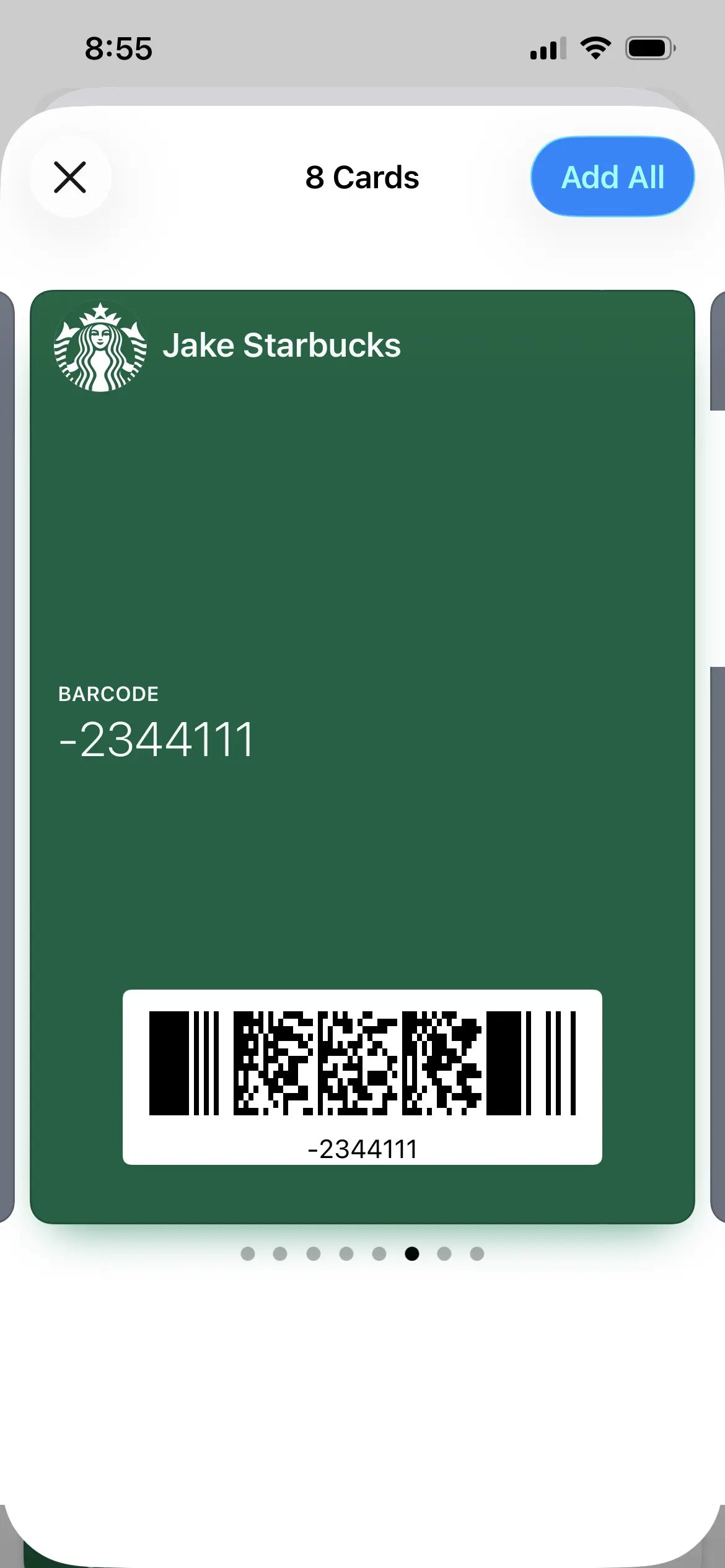
After the update, your refreshed passes appear in your main Wallet view, ready to use. Your older passes aren’t removed automatically — Barcodes can’t delete your older passes, so instead of disappearing they move to Apple Wallet’s Expired section. You can leave them there or remove them yourself, and they won’t affect your new, active passes.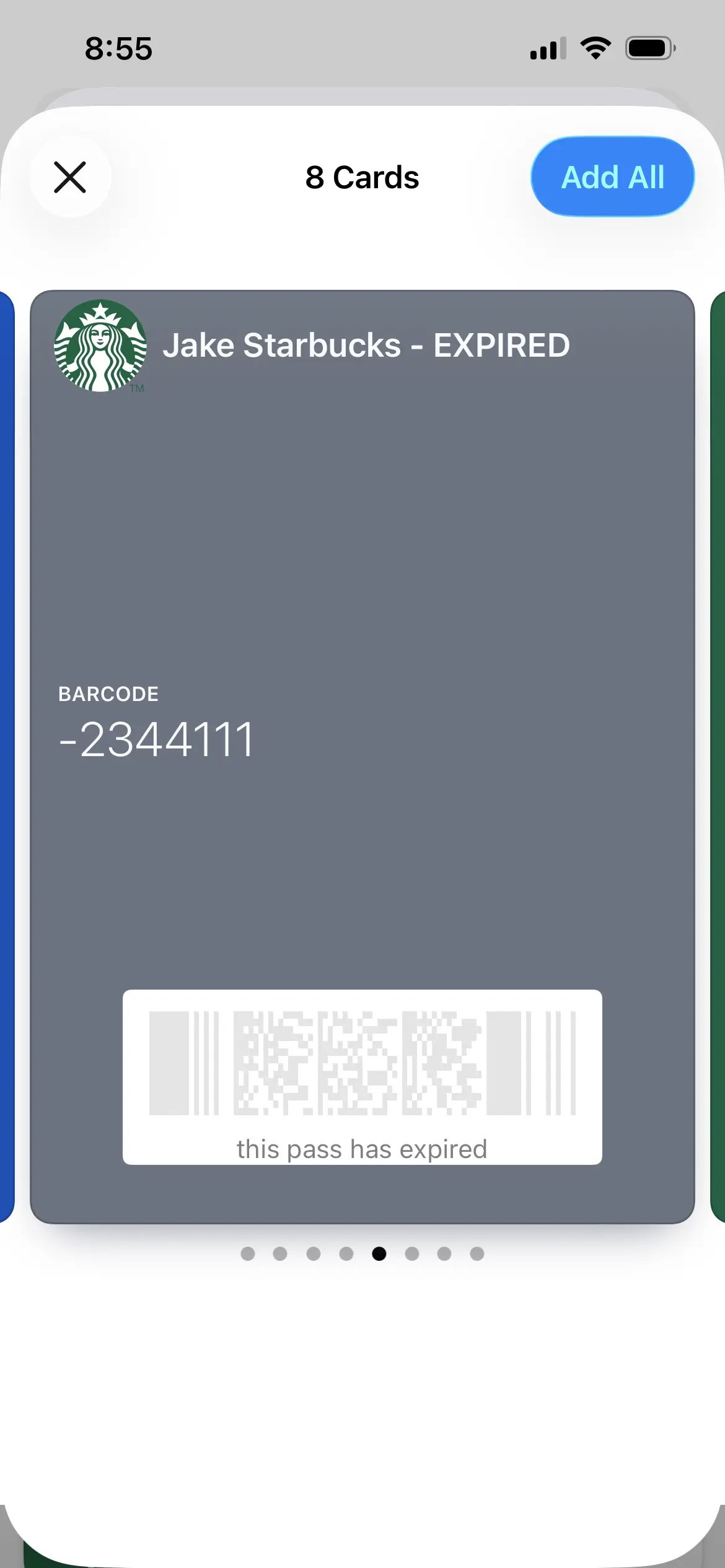
Removing expired passes (optional)
Expired passes are harmless and you can simply ignore them. If you’d prefer to tidy them up: Find your expired passes- Open the Wallet app on your iPhone.
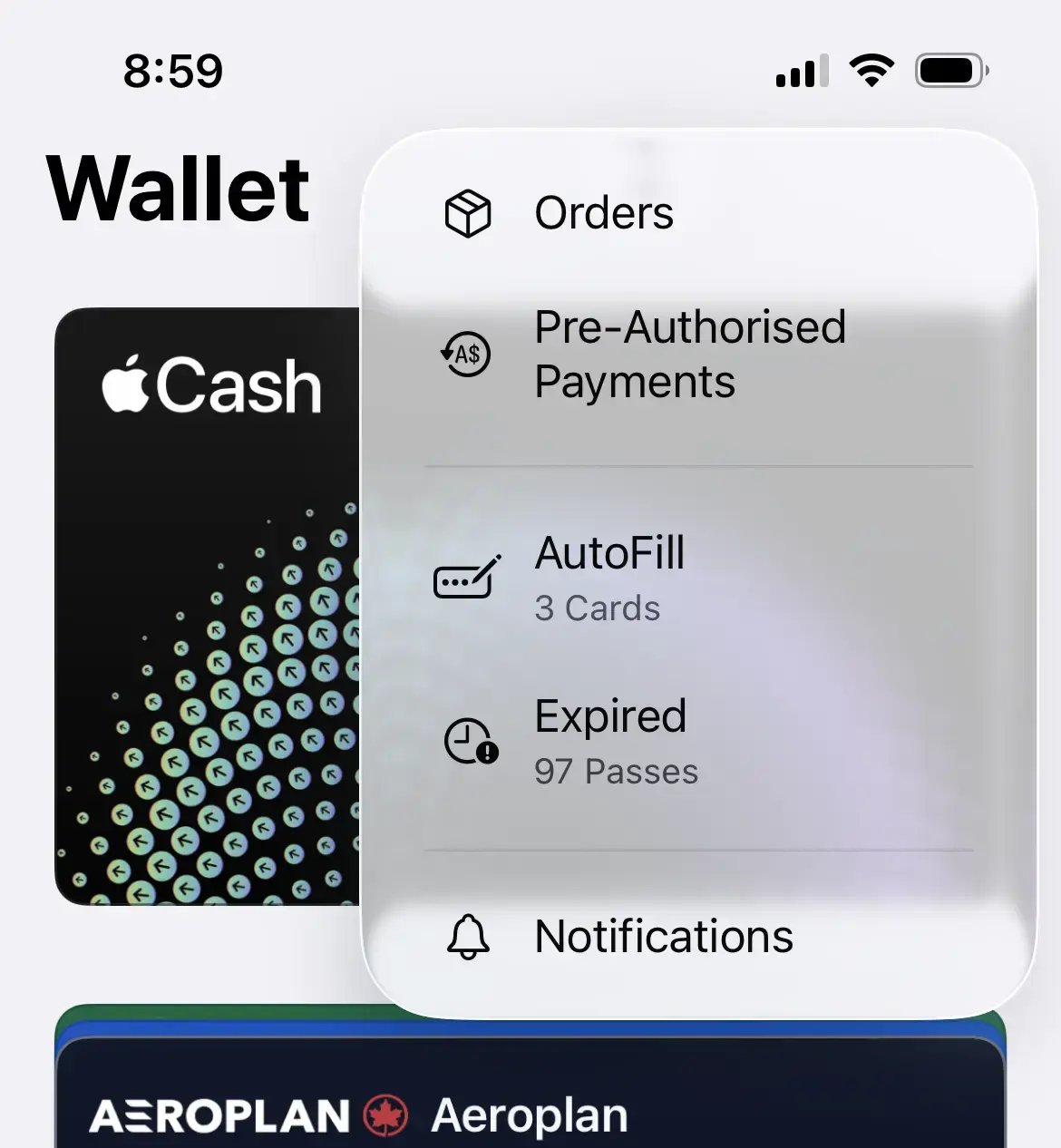
- Tap the ••• menu in the top corner and tap Expired (on older versions of iOS, scroll to the bottom and tap Expired Passes instead).
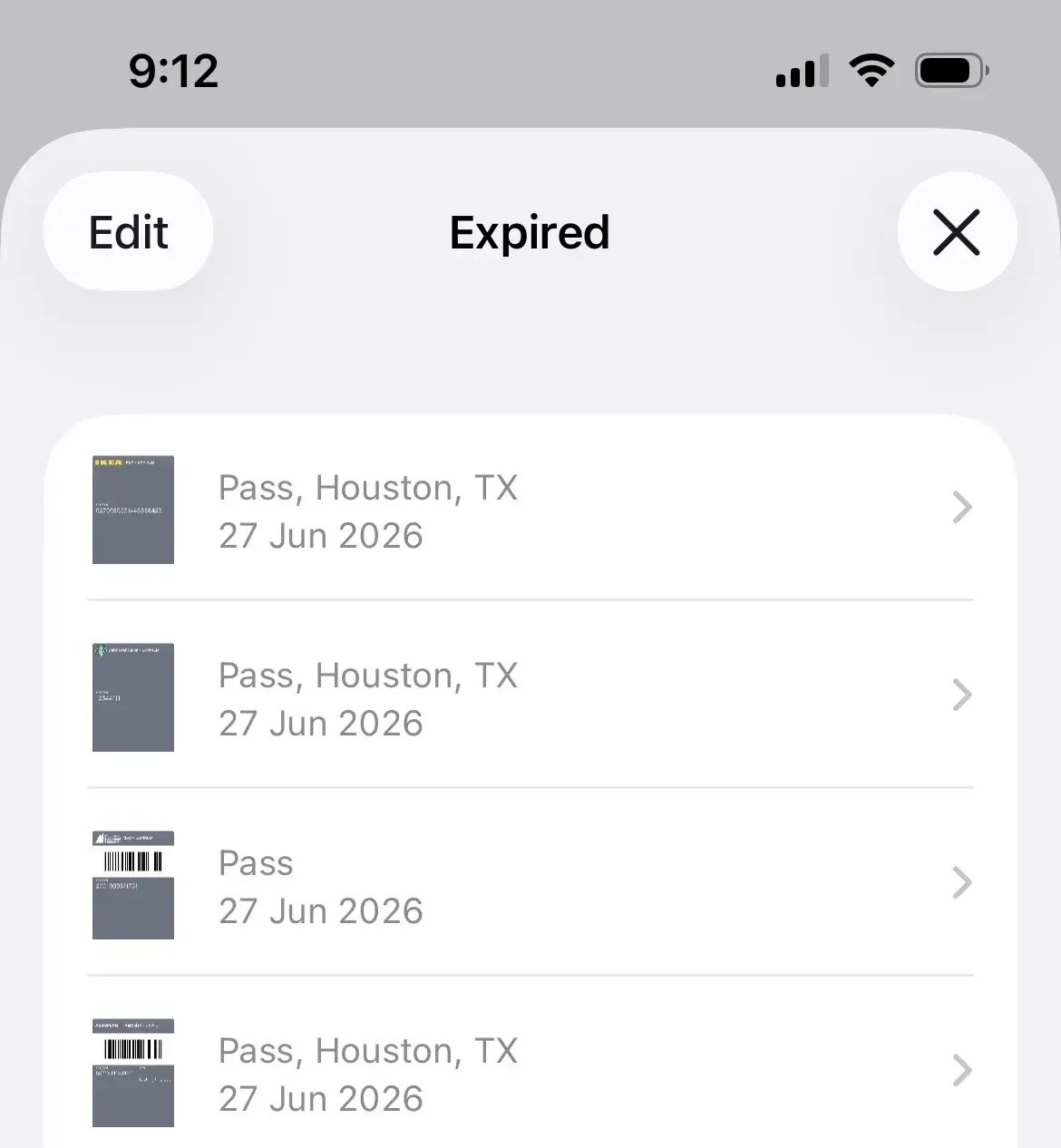
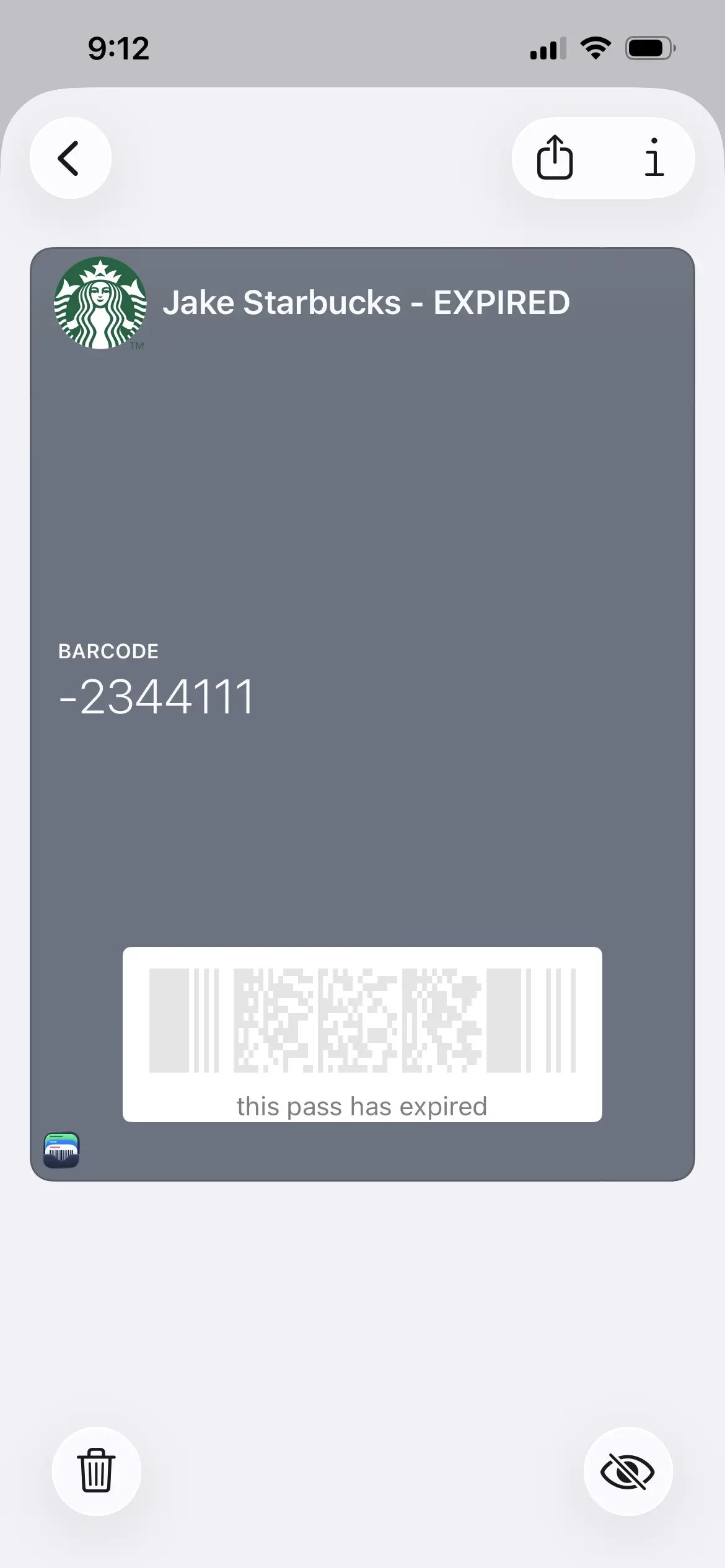
- Tap the expired pass you want to remove.
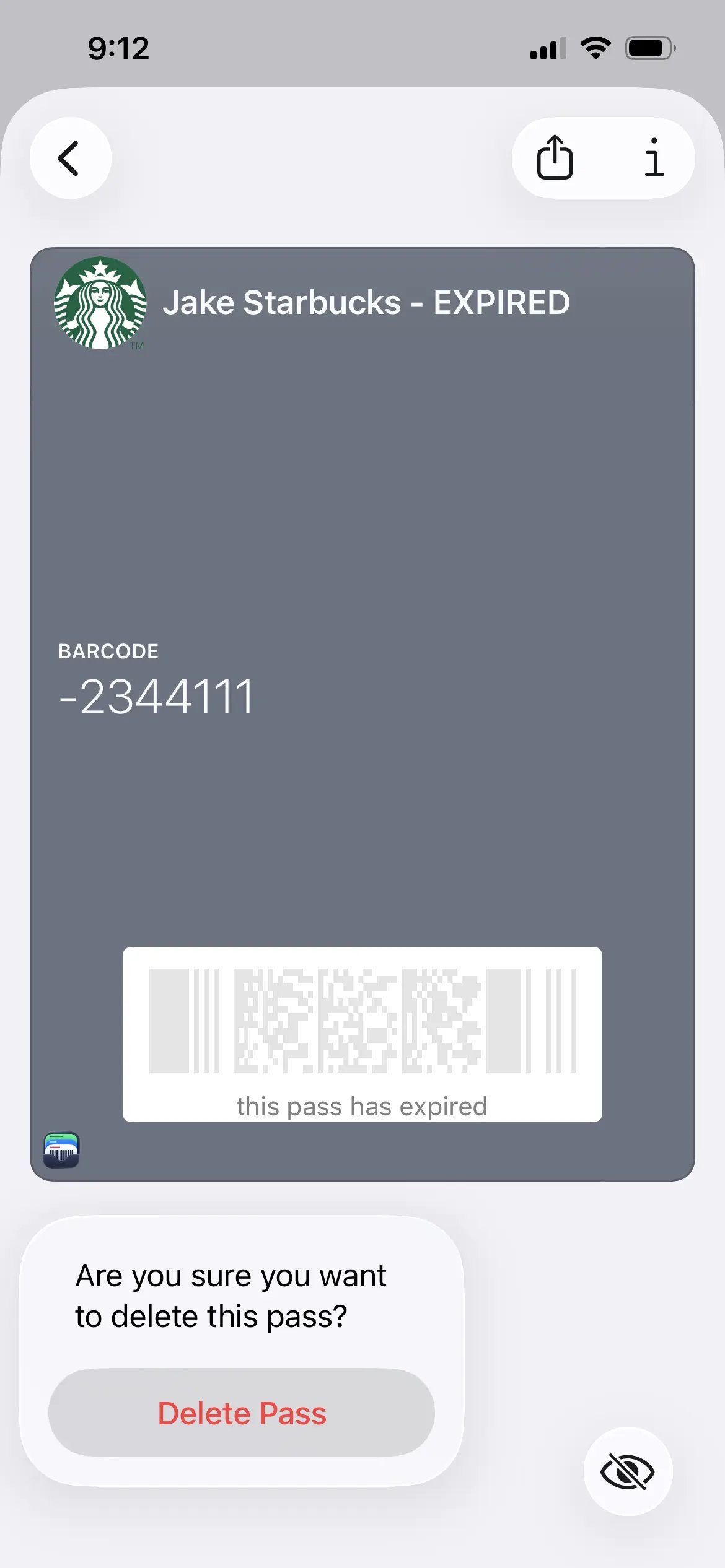
- Tap the trash icon, then confirm Delete Pass.
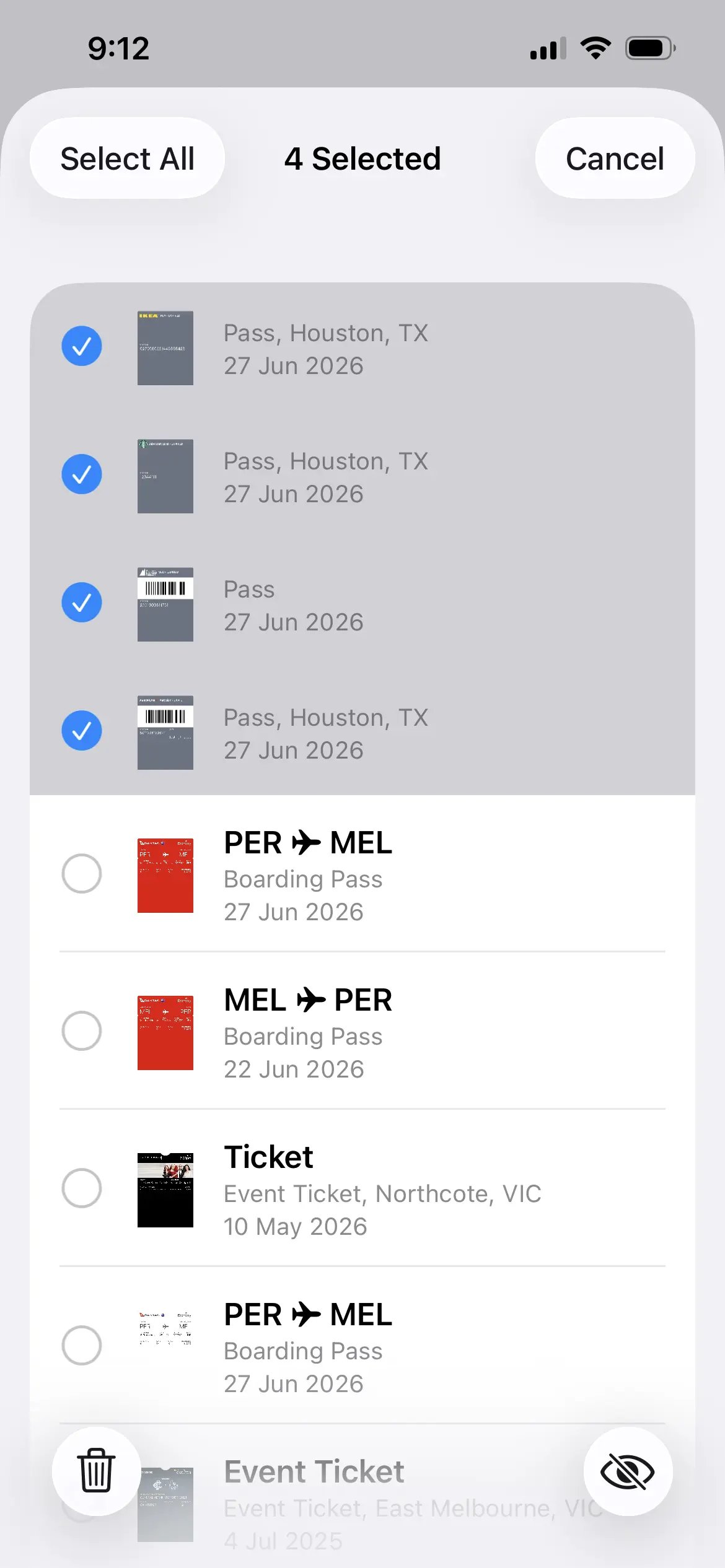
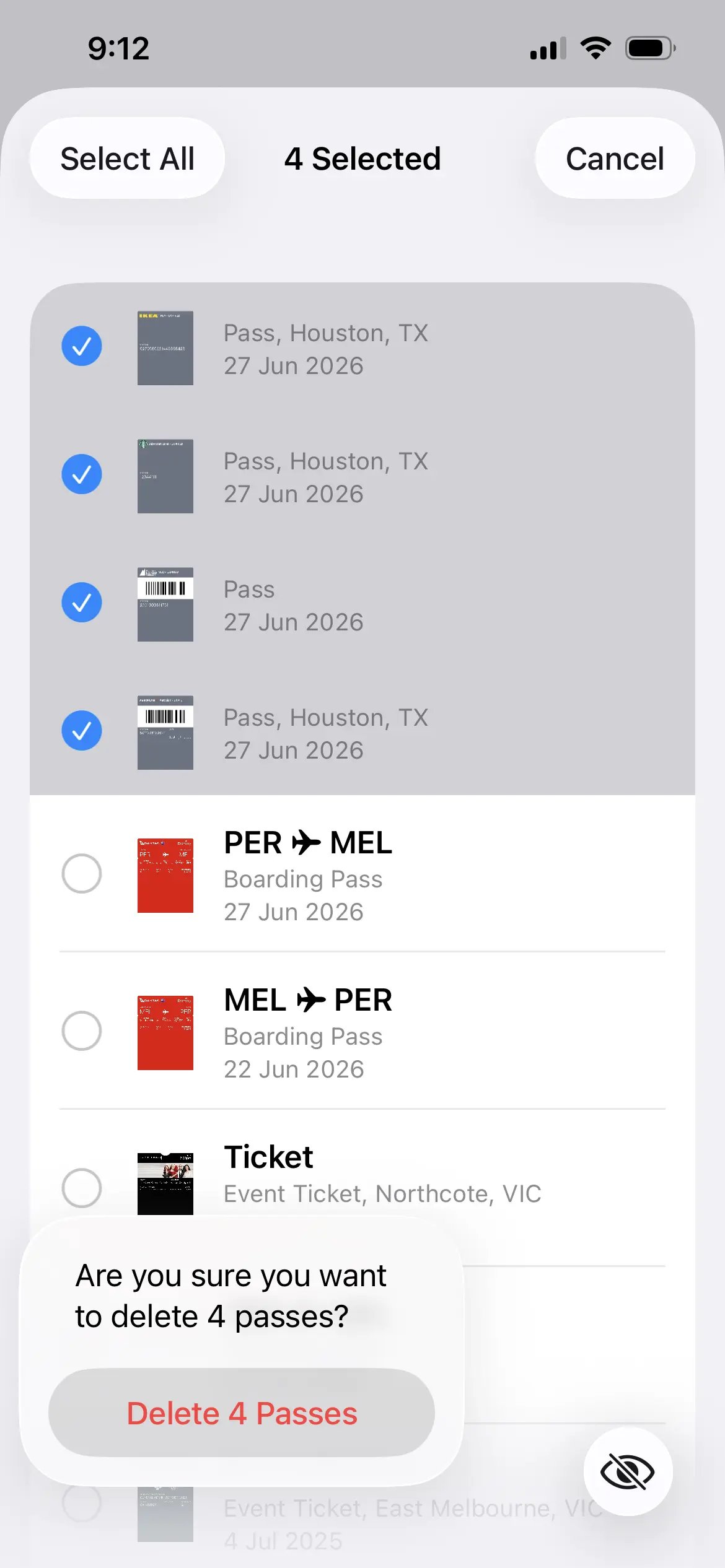
- In the Expired list, tap Edit.
- Select the passes you want to remove.
- Tap the trash icon, then confirm Delete [N] Passes.
Updating later, or skipping
If you’re not ready right away, you have options:- Update later — tap the ✕ to close the prompt. Barcodes will offer it again the next time you open the app, and you can re-open it any time from Settings → Apple Wallet → Update remaining Wallet passes.
- Skip it — tap Skip this Wallet update if you’d rather not be asked again. Skipped cards won’t reappear in the prompt or under Update remaining Wallet passes — if you change your mind, open the card and add its Wallet pass again.
- Update some now — if you update only some of the cards, the rest are treated as skipped for this one-time update. You can re-add those manually from each card later.